Click to go to:
Introduction
When enabled in ledger settings, the option to send a Statement of Advice (SOA) will be included at the bottom of the Compliance page of the Transaction wizard, under the main Compliance table.
Compliance page
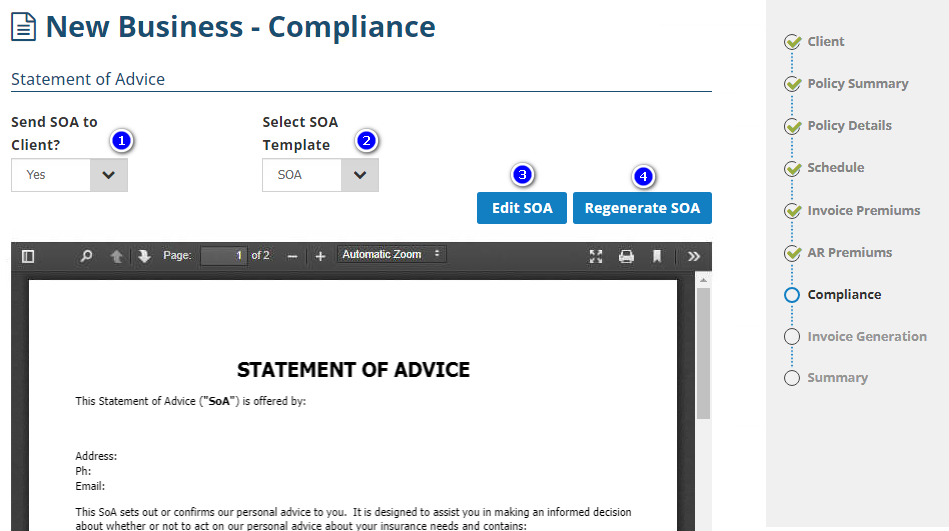
1. Send SOA to Client - There are 2 options for this field:
- Yes: Displays the Statement of Advice section of the Compliance page.
- No: Hides the Statement of Advice section of the Compliance page.
2. Select SOA Template - Displays the SOA Templates available in Configuration.
3. Edit SOA - Launches Microsoft Word where you can edit and make changes to the template.
4. Regenerate SOA - Removes all edits and replaces the current SOA with the chosen SOA template.
Generating the SOA Document
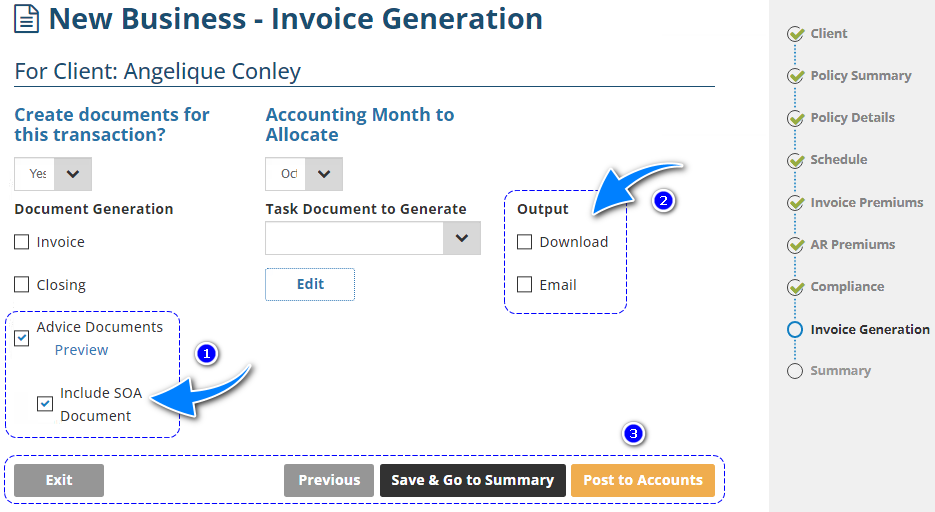
 | Select the Advice Documents checkbox, then the Include SOA Document checkbox. |
 | Choose your desired Output method:
|
 | Generate the document by choosing one of the options. When ready to finalise the transaction (edits ONLY done via Endorsement/Amendment):
When NOT ready to finalise the transaction but wish to generate the SOA and return to the transaction to make changes later:
|
Was this article helpful?
That’s Great!
Thank you for your feedback
Sorry! We couldn't be helpful
Thank you for your feedback
Feedback sent
We appreciate your effort and will try to fix the article