| Version 2.0 | January 2023 |  |
Table of Contents |
Introduction |
This section will explain the receipting process for both Manual and EDI policies separately as they are dealt with slightly differently in INSIGHT.
Manual (non-EDI) Instalment Receipts |
Typically, at the end of each month the insurer sends payment information to the broker.
By processing the instalment payment receipts, commission is earned on all policies where client premium instalments have been collected by the insurer paid to the broker.
The Manual Instalment Receipts process is handled by a payment wizard.
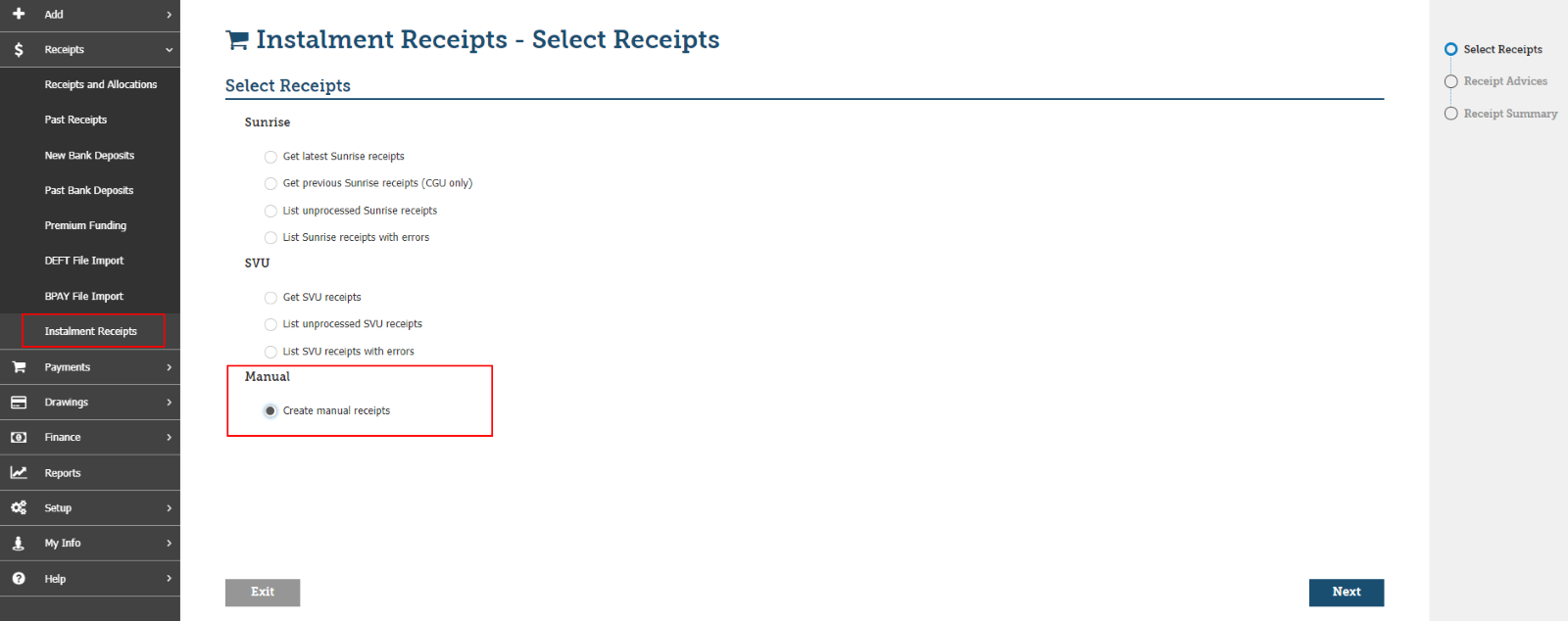
The Instalment Receipts page enables you to create manual receipts for Manual Instalments in addition to existing receipting you may perform for Sunrise or SVU Instalment policies.
This wizard process is restricted to one user at a time. If you attempt to access the wizard and another user from your brokerage is already processing payments, a message will be displayed: “Try again in a few minutes”.
1. To process Manual Instalment Receipt Select Receipts → Create manual receipts
2. Instalments must be receipted for each Insurer separately. On the Receipt Advices page, select the Insurer and instalment due date range to be receipted and click Search.
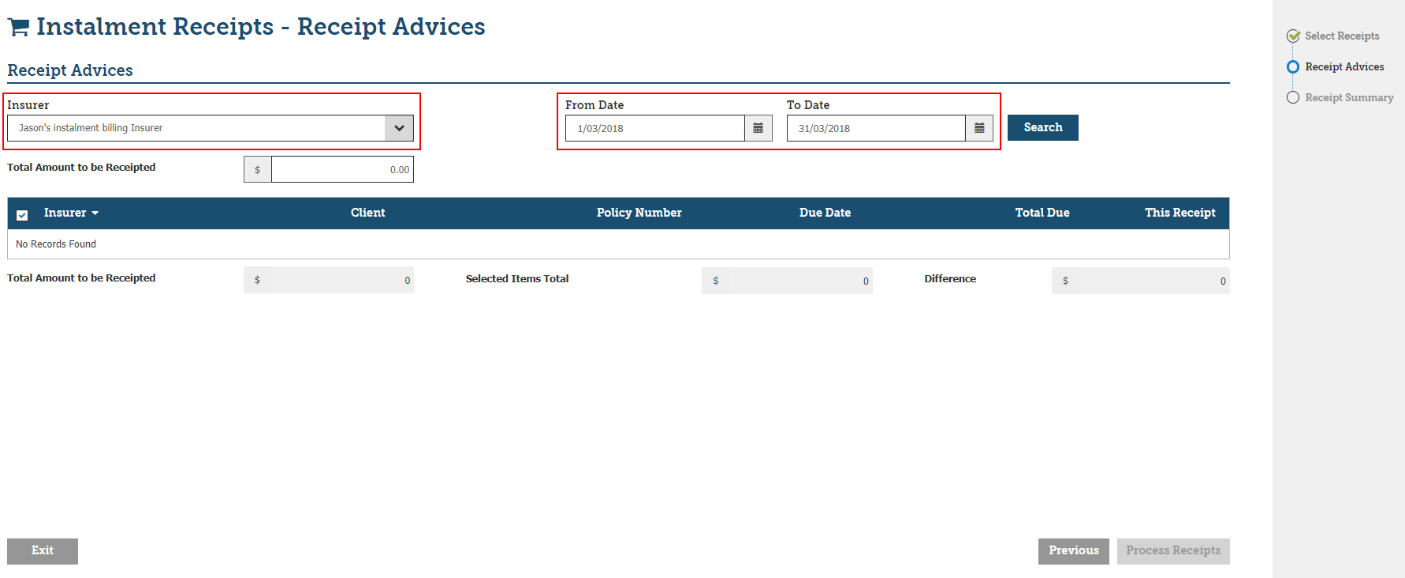
3. The instalments to be receipted will be displayed and this can be matched against the statement provided by the Insurer.
a. Enter the Total Amount to be Receipted and select the policies that can be receipted by ticking the tick-box. This can be done individually, or for all entries by selecting the tick-box in the table header.
b. The Selected Items will automatically total as each policy is selected.
c. The receipt amount for each policy will default based on the value from the Instalment Plan, however this can be amended if a different amount has been paid by the Insurer.
d. When the Difference between Total Amount to be Receipted and Selected Items Total is $0.00, the Process Receipts button can be clicked, and the receipting process can be completed as per the existing process.
Receipting Broker Fees for Instalments
There are two ways you can receipt a broker fee on a manual instalment policy:
1. When a fee is received directly from the insured, meaning it is a debt outstanding on the insureds account.
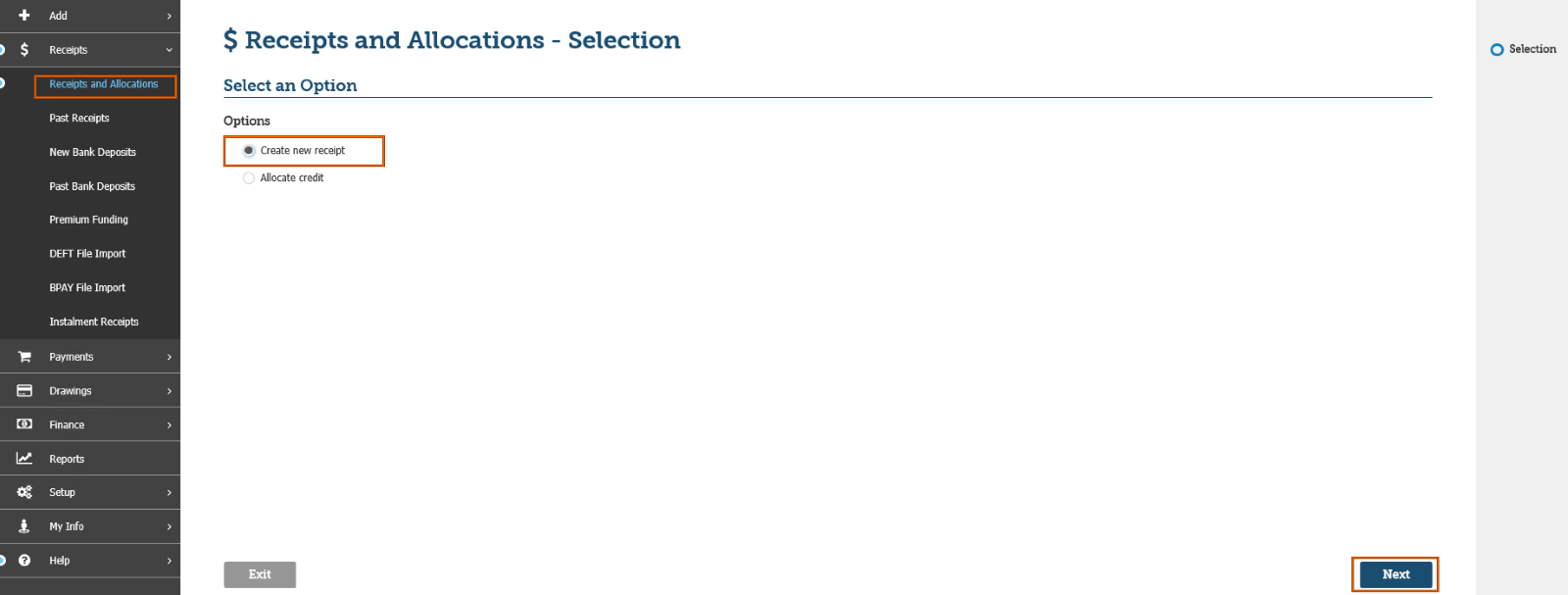
a. this is processed as a normal cash receipt by selecting Receipts, Receipts and Allocations, Create new receipt and Next.
2. When the fee is included in the first instalment from the insurer.
EDI Instalment Receipts |
At the end of each month the insurer sends a payment file electronically to the broker, this file is imported into INSIGHT. The payments can be viewed prior to importing and then automatically allocated to the policy transactions.
By processing the instalment payment receipts, the broker is able to earn commission and broker fee income on all policies where client premium instalments have been collected by the insurer and imported into INSIGHT.
Sunrise and SVU Instalments Payment process is handled by a payment wizard. You can Select, View, or Import the payments receipts and confirm the payments by printing a payment summary.
The process of drawing the broker’s income is done separately by the option Drawing -> New Drawings -> Income.
The Instalment Payment page enables you to select between Sunrise or SVU instalment payments to be imported.
This wizard process is restricted to one user at a time. If you attempt to access the wizard and another user from your brokerage is already processing payments, a message will be displayed: “Try again in a few minutes”.
Sunrise Instalment Payments
1. To process Sunrise Instalment Payment – Select the Sunrise option:
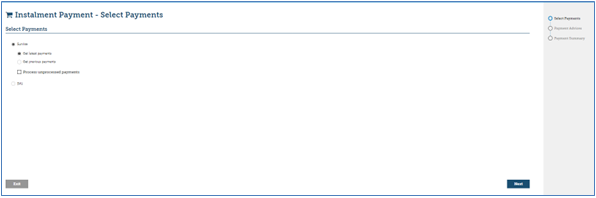
2. To process new Sunrise payments that have not been previously imported, select Get latest payments as shown above and select Next (this should only be done once a month).
3. INSIGHT will then perform a background search for the latest payment file sent from the insurer.
4. When the file is located, it will automatically list the new instalment payment receipts for importing into INSIGHT.
5. From this page, you can display payments for an insurer by selecting the insurer from the dropdown list.
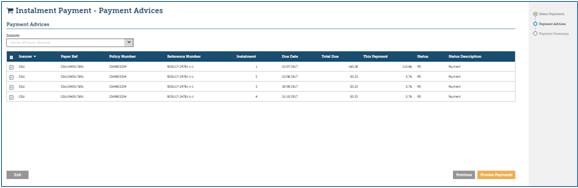
6. To proceed and process the Instalment Payment receipts, select the Process Payment button.
7. Dishonour payments can also be listed on this page and are processed along with instalment payments.
8. You will be prompted by a confirmation message to proceed with the payment. Select Yes or No to return to the previous page.
9. The Payment Summary page is displayed indicating the number of payments that were processed, as shown below:
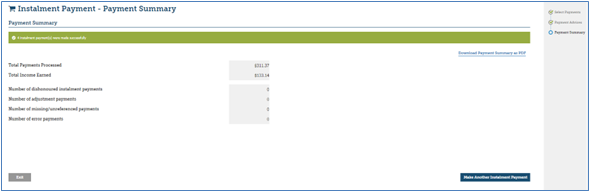
This Payment Summary page displays the Total Payments Processed and the Income Earned for this current instalment payment import.
The Payment Summary page may also display any adjustment payments, which is when the insurer takes back more than net premium or pays more than the net premium or pays more than the net on a negative policy.
Missing/unreferenced payment is where transactions to be paid cannot be found in the system, usually because of data transfer.
Error is in the event of a general error when attempting to process the payment, e.g. a system failure, if an error is received you will need to refer this to our support desk.
If Adjustments, Missing/Unreferenced or Errors are listed, notify the insurer of the problem with the payment.
Sunrise Instalment Payment - Process Unprocessed Payments
New payments and previously imported unprocessed payments can be processed together by selecting the following options.
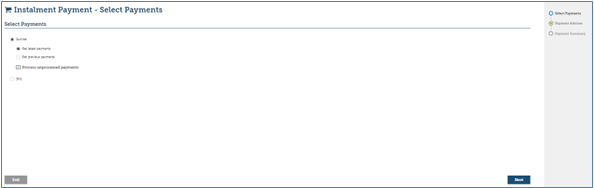
The Instalment wizard then displays the Payment Advice page. You can then proceed with selecting the new payments and imported but not processed payments.
Sunrise Instalment Payment - Get Previous Payments
For CGU payments only,>Get previous payments enables you to process new payments from a previous month that have not been imported. The date range search option is available to narrow down the search results.
1. You will be prompted by a confirmation message to import the payment file:
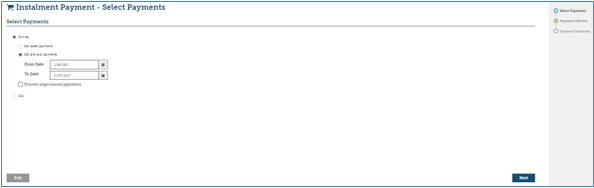
2. The selections Get previous payments and Process unprocessed payments enable you to get new payments from a previous period and payments that have been imported but not processed. The date range search option is available to narrow down the search results.
3. Select the Next button.
4. The Instalment Payment Advices page is displayed:
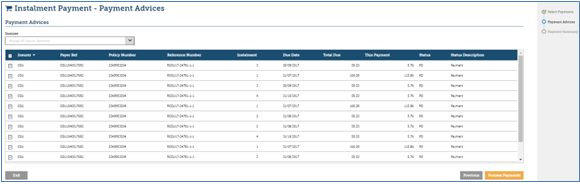
5. You can select the payments and continue by clicking the Process Payments button.
6. The Payment Summary step of the Instalment Wizard is then displayed with a summary of payments processed.
SCTP Instalment Payments |
2. You are prompted to select the import file. If the file has been previously imported into INSIGHT, a warning message will be displayed.
3. The Instalment wizard displays the Payment Advice page listing the payments to be processed.
4. You can select the payments and choose Process Payments.
5. The Payment Summary step of the Instalment Wizard is then displayed with a summary of payments processed.
SCTP Instalment Payments - Unprocessed Payment
To process new SCTP instalment payments and previously imported but not processed payments, select SCTP and Process unprocessed payments option as shown below.
1. You are prompted to select the import file. If the file has been previously imported into INSIGHT, a warning message will be displayed.
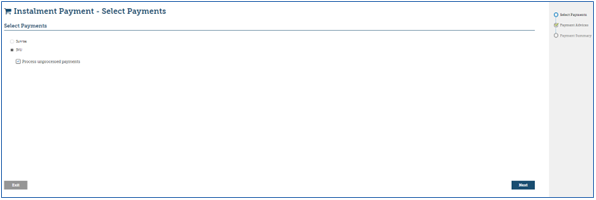
2. The Instalment wizard displays the Payment Advice page, listing the new payments and payments that have been previously imported but not processed.
3. You can select payments and select Process Payments to proceed.
4. The Payment Summary step of the Instalment Wizard is then displayed with a summary of payments processed.
Sunrise & SCTP Payment File Errors |
All Errors will need to be referred to support with a copy of the payment file from the insurer via email. Email subject line should read: “Instalment error received from (insurer name)” and include the date of the file upload and a screen shot including the INSIGHT URL along with a copy of the payment file from the insurer (contact your ebusiness manager to obtain this).
To remove items from the Unprocessed List, all requests must be referred to support with email subject line : “Remove Instalments from Unprocessed List for (insurer name)”.
In the case of a discrepancy between the file uploaded and the amount remitted to your trust account, it is recommended you obtain the remittance report from the insurer and compare it to your “Instalment payment receipt” (defined the next section of this guide) report to find the discrepancy.
Instalment Reports |
There are two reports in INSIGHT to accommodate the Instalment Billing process.
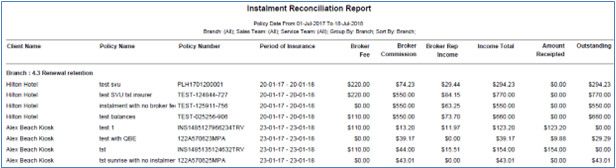
Instalment Reconciliaiton Report
This report displays the Brokers income, the amount receipted via the Instalment Payment Receipt process and the amount outstanding to the Broker. The report has also various filters to enable you to run the report using date selection, Branch, Team and grouping selections. Note: Use future From and To dates to produce the report for current policies. The report can be produced in PDF or Excel format.
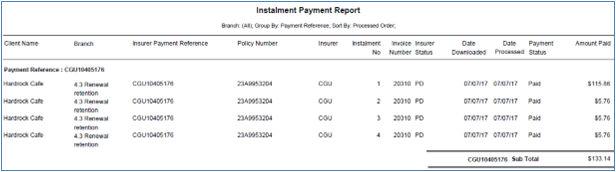
Instalment Payment Receipt Report
This report displays a list of all Instalment payment receipts transactions and their balances for transactions that have been imported into INSIGHT. The report filters enable you to report by the processing statuses: paid, error, adjustment, unknown, and does not exist.
The report also has various group and sorting selections for the report to be displayed in a certain order. The report can be produced in PDF or Excel format.
Other Reports
The following reports have been modified to include instalment-billed policies:
- Policy Master – filter available for instalment-billed policies
- Client Statement – highlights instalment-billed policies
- Sunrise Policies – filter available for instalment-billed policies
- Receipts Analysis – displays instalment-billed policies
- Register of Business written
- Bank Reconciliation & Bank Summary
Was this article helpful?
That’s Great!
Thank you for your feedback
Sorry! We couldn't be helpful
Thank you for your feedback
Feedback sent
We appreciate your effort and will try to fix the article