Click to go to:
Introduction
The Client Account Enquiry is used to monitor what the client owes the broker and what the client has already paid. You can locate the Client Account Enquiry by:
 | Search for & locate the correct client, then select View. |
 | Select Menu, then Account Enquiry. |
Once inside the Client Account Enquiry, you'll notice that it's divided into the Top & Bottom sections. The Top section contains the filters that determine the transactions you'll see in the Bottom section.
Top section
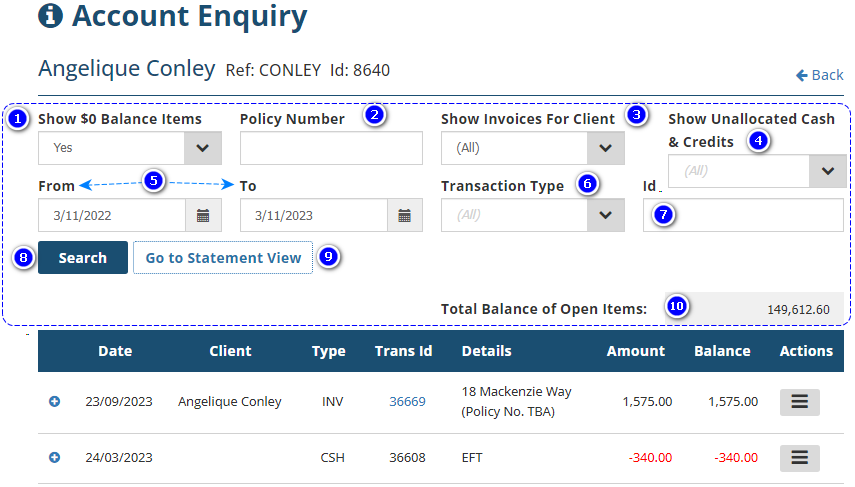
1. Show $0 Balance Items - There are 2 options for this field:
- Yes: Displays paid items and filters 5 - 7.
- No: Displays unpaid items and filter 4.
2. Policy Number - Filters for a specific policy number.
3. Show Invoices For Client - Shows invoices that the current client is paying for but belong to other clients.
4. Show Unallocated Cash & Credits - Includes unallocated cash & credits in the transactions list and is only visible when Show $0 Balance Items is set as No.
5. From & To - Filters the transactions based on the entered date range.
6. Transaction Type - Filters the transactions based on the following Account Transaction Types: Invoice, Credit Note, Cash Receipt, Refund, Journal, Payment, Return, Pay Direct, Conversion of Credit Note to Cash, Pay Direct - Instalments, Credit Card Fee.
7. Id - Filters the transactions using a transaction id, also known as the invoice number.
8. Search - Applys the selected filters to the displayed transaction list.
9. Go to Statement View - Allows you to view the account enquiry in Statement View.
10. Total Balance of Open Items - Displays the total balance of outstanding items.
Bottom section
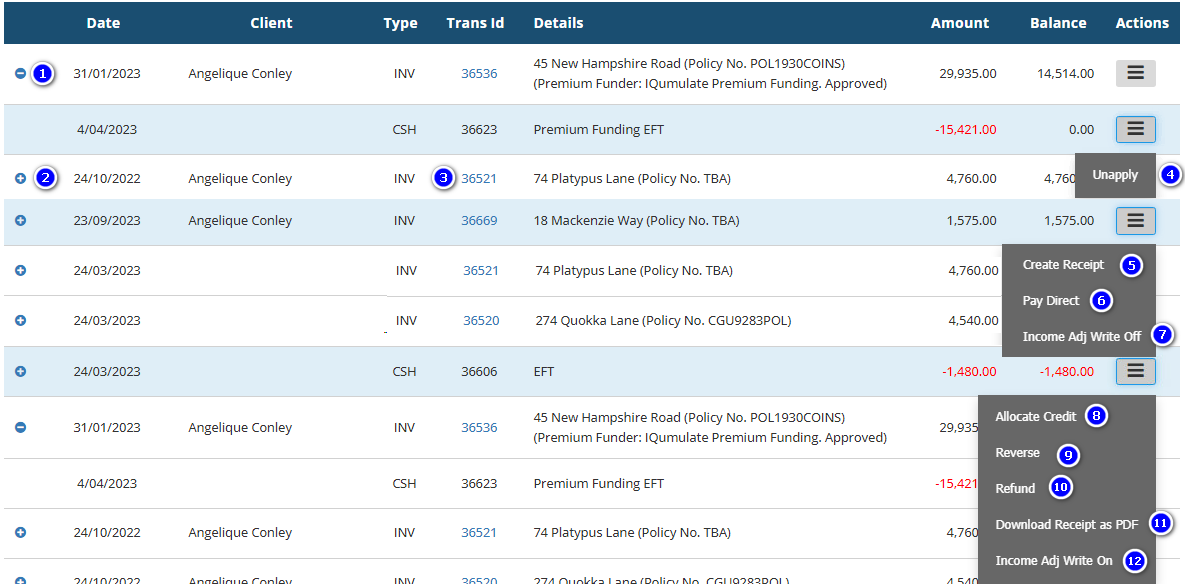
1. Minus symbol - Contracts the display to show an individual account transaction type.
2. Positive symbol - Displays other associated account transaction types, ie: will display the receipt that was applied to the invoice.
3. Invoice hyperlink - Takes you to the transaction related to the invoice.
4. Unapply - Separates the receipt from the invoice, therefore making the receipt unallocated cash and the invoice amount outstanding. IMPORTANT: Only possible if drawings have NOT been processed for this receipt.
5. Create Receipt - Shortcut to the Receipts & Allocations wizard to create a receipt to allocate to the invoice.
6. Pay Direct - Removes the debt and makes the invoice's balance zero as the client will pay directly to the Insurer instead of the broker.
7. Income Adj Write Off - Uses the broker’s income to pay for the outstanding amount.
8. Allocate Credit - Shortcut to the Receipts & Allocations wizard where you can allocate the credit to an invoice or invoices.
9. Reverse - Removes the receipt from the client's account; generally used when the receipt was incorrectly credited to the client or if the cheque was dishonoured. IMPORTANT: Only possible if drawings have NOT been processed for this receipt.
10. Refund - Shortcut to the Payments wizard where you can process a client refund payment.
11. Download Receipt as PDF - Allows you to download the receipt in PDF format.
12. Income Adj Write On - Adds the credit to the broker’s income.
Was this article helpful?
That’s Great!
Thank you for your feedback
Sorry! We couldn't be helpful
Thank you for your feedback
Feedback sent
We appreciate your effort and will try to fix the article