Click to go to:
Introduction
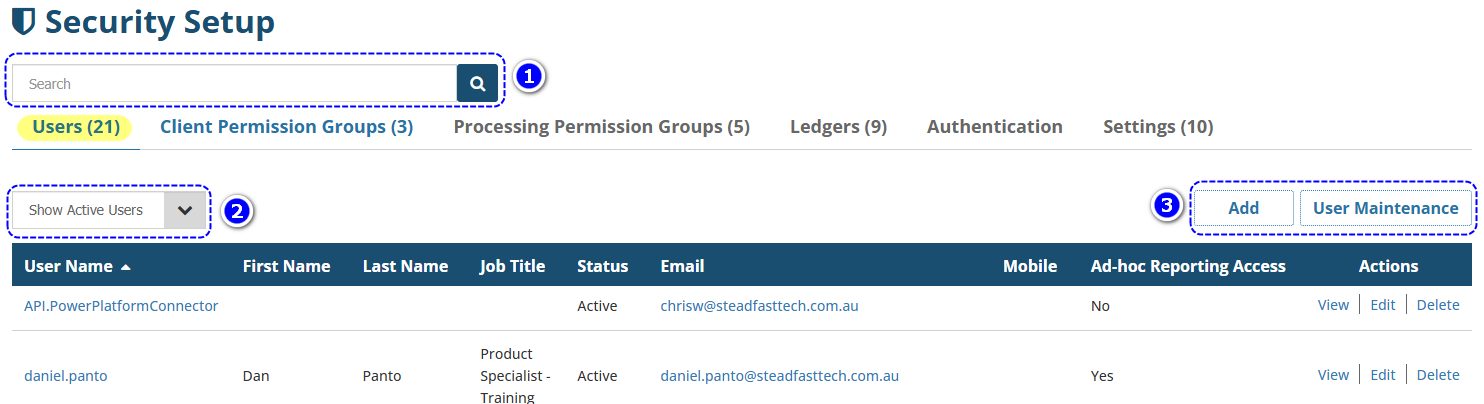
Found under the Setup menu, Security contains the list of all users added to the ledger and is where you can add, edit or delete users. Aside from the list of users, you can use the following to manage users:
 | Search bar - use this to refine the list of users to your search keywords; the results will depend on the current Filter in use. Ensure that you clear the search bar and re-select the magnifying glass, to see the full list again. | ||
 | Filter - the options are:
| ||
 | Add Users:
|
Add, Edit & Delete
Add
Refer to the Adding a User article for further information.
Edit
- Once you locate the user you want to update, go to the Actions available beside the user and select Edit.
- Make the necessary changes and select Save.
Delete
You can only delete a user if they have not logged in to the ledger yet. Once they have logged in, INSIGHT will not allow you to delete the user, however, you can make them Inactive if needed.
User Status
The available statuses for a user are:
- Active - allows user to log in and access INSIGHT
- Inactive - users with this status cannot log in and cannot access INSIGHT
- Locked - when a user has entered incorrect login details and has exceeded the allowed number of failed login attempts, their account will automatically be locked.
Update the User Status
 IMPORTANT: You must be an Administrator to access the Setup menu and update a user's Status.
- Users may have a Locked status when they have exceeded the allowed number of failed login attempts. To return INSIGHT access to the user, update their Status from Locked to Active. then use User Maintenance to send them a password reset token.
1. Locate the user you wish to update.
2. Select Edit.
3. In the Details page, locate the Status field and select the relevant Status.
4. Select Exit, then Save.
Was this article helpful?
That’s Great!
Thank you for your feedback
Sorry! We couldn't be helpful
Thank you for your feedback
Feedback sent
We appreciate your effort and will try to fix the article