Click to go to:
Reversing an Unallocated Receipt
Reversing an Allocated Receipt
Introduction
Receipts may need to be removed from the system due to creating the receipt more than once or a receipt dishonouring. To cater for these scenarios, INSIGHT has the option to reverse a receipt whether it remains unallocated or has been allocated to an invoice. Before reversing the receipt, be aware that a reverse will completely remove the receipt from the system.
Due to this, it is important to be mindful of why you want to reverse the receipt. If you intend to do any of the following, do NOT use Reverse.
 | Apply the receipt to another invoice. | |
 | Refund the receipt to the client. | |
 | Journal the receipt to another client. |
NOTE: You cannot reverse a receipt once income is drawn from the receipt or credit. INSIGHT will display a message advising that the “reverse of this amount is not permitted”.
Reversing an Unallocated Receipt
1. Locate and view the client the receipt belongs to.
2. Select Menu and Account Enquiry.
3. Leave the Show $0 Balance Items filter as No and locate the receipt - receipts are identified as CSH.
4. Found on the right side of the receipt, select Actions and Reverse.
5. Choose a Reason from the dropdown field, select Post to Accounts, and then Yes to the confirmation message.
Reversing an Allocated Receipt
1. Locate and view the client the receipt belongs to.
2. Select Menu and Account Enquiry.
3. Update the Show $0 Balance Items filter to Yes – This will update the list to show receipts/credits that have been allocated to invoices and therefore have $0 balances.
4. Locate the invoice the receipt was allocated to - Invoices are identified as INV. You can also use the Id field and select Search to filter out the invoice.
5. Found on the left side of the invoice, select the plus sign to display the receipt - Receipts are identified as CSH.
6. Record the Trans ID of the receipt.
7. Found on the right side of the receipt, select Actions, Unapply, then Post to Accounts.
8. Locate the receipt in the list - if you recorded the receipt Trans ID, use the ID field and select Search to filter out the receipt. Otherwise, you can manually go through the list to find the receipt.
9. Found on the right side of the receipt, select Actions, then Reverse.
10. Choose a Reason from the dropdown field, select Post to Accounts, and then Yes to the confirmation message.
What happens after?
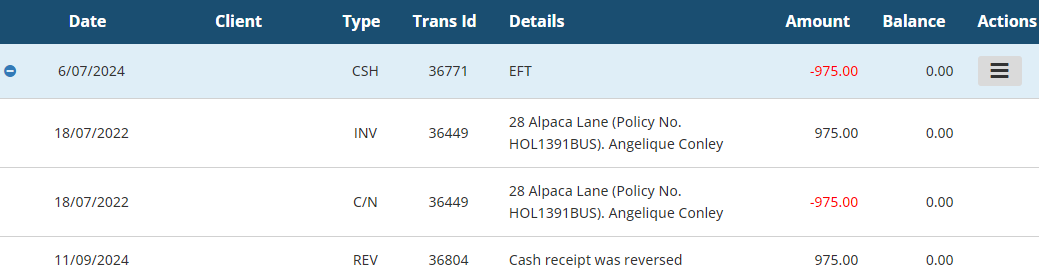
The reversed receipt will remain in the Account Enquiry for auditing purposes and will have a $0.00 balance. Selecting the plus sign beside it will reveal its history, which includes a REV (reverse) line to confirm its reversal.
Was this article helpful?
That’s Great!
Thank you for your feedback
Sorry! We couldn't be helpful
Thank you for your feedback
Feedback sent
We appreciate your effort and will try to fix the article