Click to go to:
Introduction
INSIGHT allows you to create an individual payment bank file for payments processed via the New Payment wizard or include the payments in a bulk payment bank file along with other entity payments via the Export Payment Bank File wizard. | 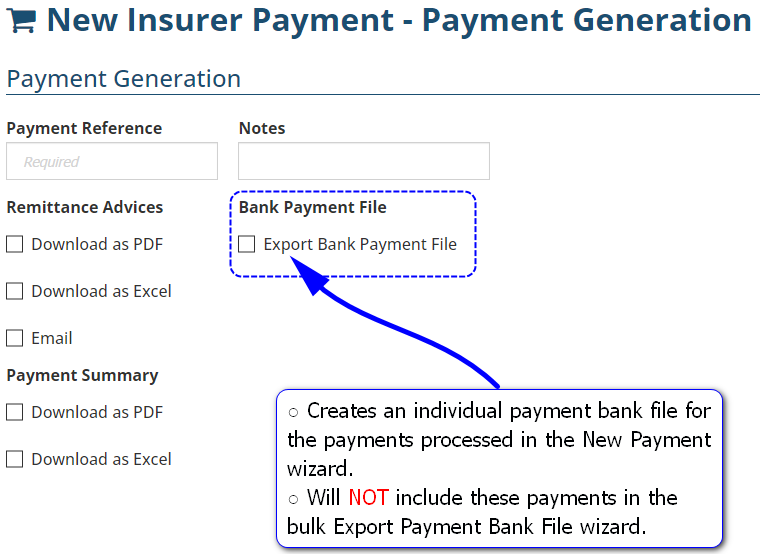 |
 | When your bank supports Payment Bank (.ABA) Files and the feature is activated in INSIGHT, you can set it up for payments to insurers, authorised reps and clients (refunds). Use the Export Payment Bank File wizard to create separate payment bank files for each entity or create one bulk payment bank file combining different entities. Once generated, the payment bank file will be in an .ABA format and uploaded to your banking website. |
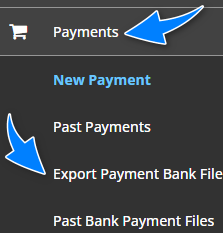
| You'll find the Export Payment Bank File wizard by selecting Payments, then Export Payment Bank File. The pages to be completed are: | 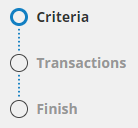 |
Criteria
The available options are Insurer, Authorised Rep and Client Refund payments. You will see which payments are activated for your ledger, however, speak to your Administrator if an option is not available.
Your selections here determine the payments included in the .ABA file. If you want to create an .ABA file for just insurer payments, then only select the checkbox for Include Insurer Payments. If you want to create an .ABA file with a combination of payments, then select the checkboxes for the payments you want to include in the file.
 | Select the checkbox(es) for the payments you want to include in the file. For each payment, select the date range of payments you want to capture in the .ABA file. Once done, select Next. |
Transactions
 | Review and select the payments to include in the .ABA file. Then, go to the Description of Entries field and enter a reference that easily identifies this file to you - this is a mandatory field with a max of 12 characters. Once done, select Export and Yes to the confirmation message.  QUICK TIP: Select the All checkbox to auto-select all payments listed. QUICK TIP: Select the All checkbox to auto-select all payments listed. |
Finish
The .ABA file will be downloaded into your machine. Select Export Another File to return to the start of the wizard or select Exit to navigate away from the wizard.
Was this article helpful?
That’s Great!
Thank you for your feedback
Sorry! We couldn't be helpful
Thank you for your feedback
Feedback sent
We appreciate your effort and will try to fix the article