Click to go to:
Introduction
The Payments wizard is used to process payments to insurers, authorised representatives and clients. This article focuses on Insurer payments.  | The pages to be completed are: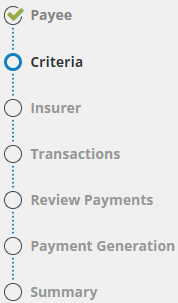 |
Payee
You'll be presented with the options Insurer, Authorised Rep and Prod. Broker or Client Refund
 | Select Insurer, then Next. |
Criteria
The criteria selected on this page determine the due payments that are presented to you. As there are many due payments in the system, use these selections to filter out the due payments you wish to process.
Payment Status
 | Transaction fully paid by the client - only presents due payments that have been fully paid by the client. |
 | Transaction fully or partially paid by the client - presents due payments that are fully paid and partially paid by the client. |
Time Period
 | All Payments Due - presents all payments due based on your selection from the above criteria, Payment Status. |
 | Effective Date - only presents due payments that have an effective date before your chosen date. |
 | Insurer Credit Term Due Date - only presents due payments that have an insurer credit term due date before your chosen date. |
 | Make your criteria selections and select Next. |
Insurer
This page presents all insurers that fit your criteria selections in the previous page.
 | Select the checkbox beside all insurers you wish to process payments for, then select Next. |
Transactions
This page groups transactions displayed by insurer - use the Insurer dropdown or the Previous/Next buttons to switch through the different insurers when paying more than one. INSIGHT auto-selects all transactions under each insurer, kindly review all transactions for payment and de-select transactions as needed.
 | Review all transactions for payment, then select Next. |
Review Payments
This page presents a summary of the balance payable and the approved payments (transaction selected on the previous page) for each insurer. Any issues will be noted in the Payment Status column. Issues need to be amended before being able to process the payment.
You also have the option to download the list of transactions as an Excel file for record keeping purposes or future reference - to do this, select the Include in Download checkbox beside the insurer(s) you wish to download transactions from, then select the Download Selected as Excel button.
 | Review the payments, download transactions in an Excel file (if needed), and then select Next. |
Payment Generation
 | Enter a payment reference number, make selections for the remittance advice, bank payment file and payment summary, select Post to Accounts, and then Yes to the confirmation message. |
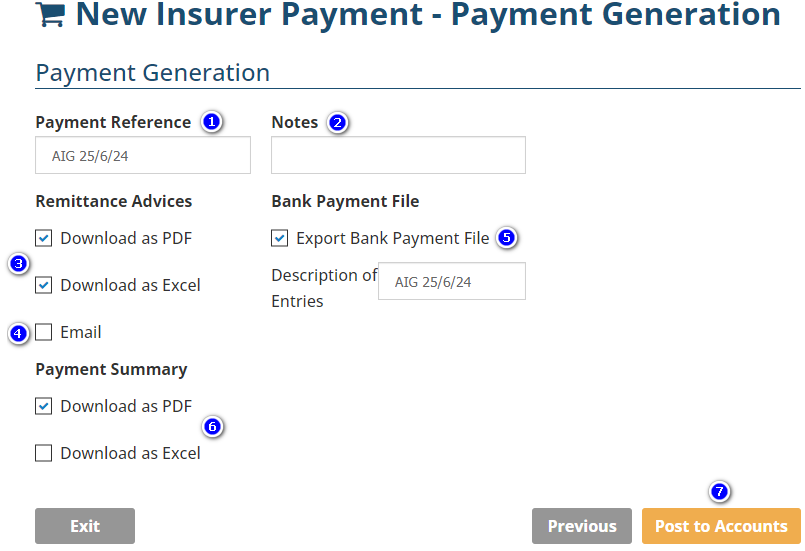
1. Payment Reference - this is a mandatory field; enter a reference that easily identifies this payment to you.
2. Notes - this is not mandatory, however, what you enter here will print on the remittance advice and payment summary, unless your documents are configured otherwise.
3. Remittance Advices: Download as PDF or Excel - choose the checkbox for your preferred file type for downloading the Remittance Advice.
4. Remittance Advices: Email - choose the checkbox when you want to email the remittance to the insurer's remittance email address on record.
5. Bank Payment File: Export Bank Payment File - choose the checkbox when you want to generate a bank payment (.ABA) file.
6. Payment Summary: Download as PDF or Excel - choose the checkbox for your preferred file type for downloading the Payment Summary.
7. Post to Accounts - select this to finalise the insurer payment(s) and to generate the selected documents.
Summary
This page displays a summary of the amounts paid to the insurer and the status of whether a remittance email was sent to the insurer.
 | Select Finish to exit the wizard or Make Another Payment to return to the start of the wizard. |
Was this article helpful?
That’s Great!
Thank you for your feedback
Sorry! We couldn't be helpful
Thank you for your feedback
Feedback sent
We appreciate your effort and will try to fix the article