The Client Portfolio Manager is used to facilitate the movement of clients between:
 | Branches |  | Service Teams |
 | Sales Teams |  | ARs |
You can complete a straightforward transfer of up to 1000 client records simultaneously. The utility is operational between 5:30 pm and 8:00 am and intentionally locked during business hours to avoid disrupting regular processing activities. | 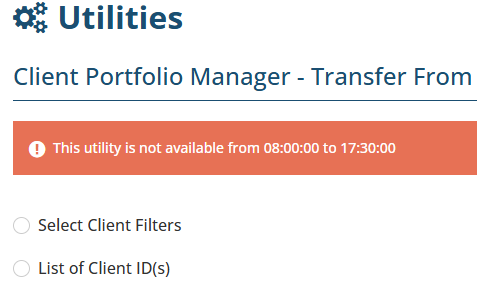 |
 IMPORTANT: This utility does not support Client Permission Group updates or SCTP Transfers, please get in touch with Professional Services to initiate these requests.
Process
1. Select Setup, Utilities, then Client Portfolio Manager.
2. Choose from the options to determine the list of clients to be transferred:
- Select Client Filters - choose from the following filters to define the list of clients to be transferred (if you don't make a filter selection, the default selection is All):
 | Client Type |  | Service Team | |
 | Client Status |  | Client, Auth. Rep & Prod. Broker | |
 | Branch |  | Client Permission Group | |
 | Sales Team |
- List of Client ID(s) - use this option if you have an existing list of clients to transfer; you must enter the client id(s) separated by commas. For example: 112,113,114,115
You can copy and paste a list of comma-delimited client ID's from an Excel spreadsheet or .CSV file. Another way of getting a list of client ID's is by exporting the Client Master report as an Excel file.
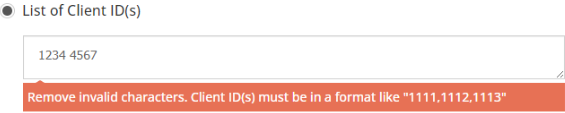
An error message will display when the incorrect syntax is used to enter client ID's:
3. Select Next.
4. Use the list to select the checkboxes of the clients you wish to transfer or select the checkbox at the blue header to auto-select all clients.
 NOTE: A warning message is displayed when the client selection is more than 1,000 records. The transfer will still go through, however, you need to return to the tool to complete the transfer for the remaining records.
5. Select Next.
6. Choose one or more of the fields to update in the list of clients - you can choose from Branch, Sales Team, Service Team and Client Authorised Rep.
NOTE:
When one or more clients are linked to a Producing Broker, the Client Authorised Rep field is greyed out to prevent changing over the Producing Broker to a Gross AR.
This tool only updates the first Gross AR on the client profile and does not apply to additional AR's linked to the client.

7. Select Next, verify the number of clients being transferred on the confirmation message, then select Transfer.
8. Select Exit to complete the wizard or the Click here link to monitor the transfer's progress in Past Client Portfolio Manager.
Was this article helpful?
That’s Great!
Thank you for your feedback
Sorry! We couldn't be helpful
Thank you for your feedback
Feedback sent
We appreciate your effort and will try to fix the article