Click to go to:
Introduction
The Automated Notifications feature is set up to ensure that an email is sent to the insurer when a policy passes the Credit Term’s due date. This is designed to assist with fulfilling the obligation of notifying insurers of non-payment within 7 days of the Credit Term Date.
| Only Insurers with the setting Automated Notifications set to Yes will receive emails as a result of this feature. Once a notification is created, it can be edited later and will stay active until it's deleted. | 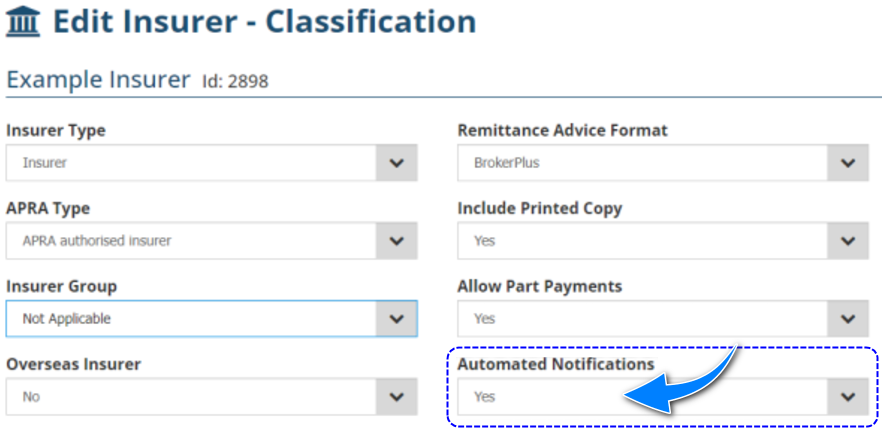 |
| |
 NOTE
NOTE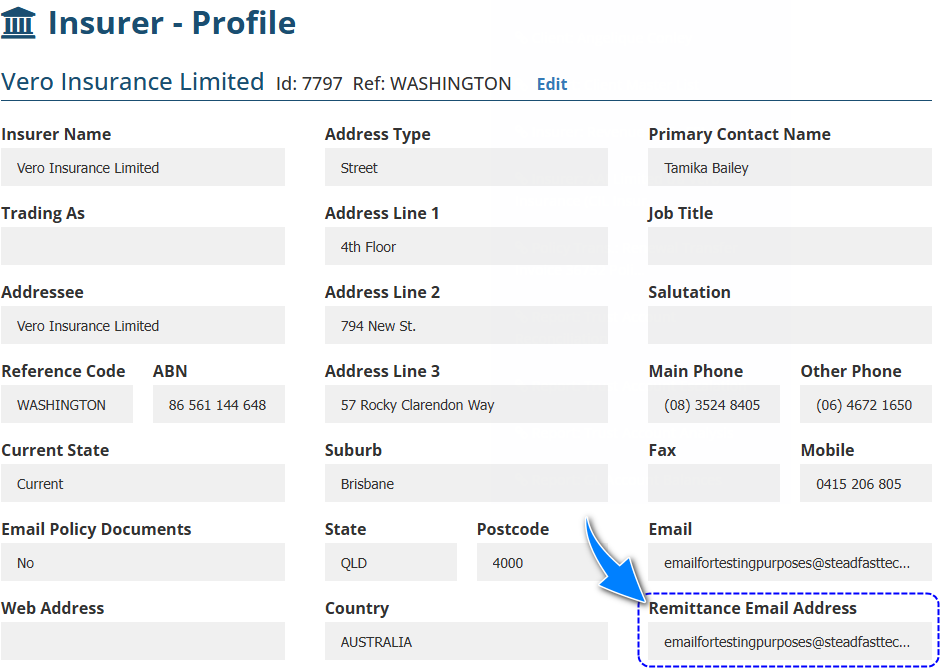
Process
1. Select Setup, Utilities and Automated Notifications.
2. When the notification doesn't exist, select Add. Otherwise, select Edit to make changes to existing notifications.
3. Choose the Notification Type (only one of each Notification Type can be configured) - the options are:
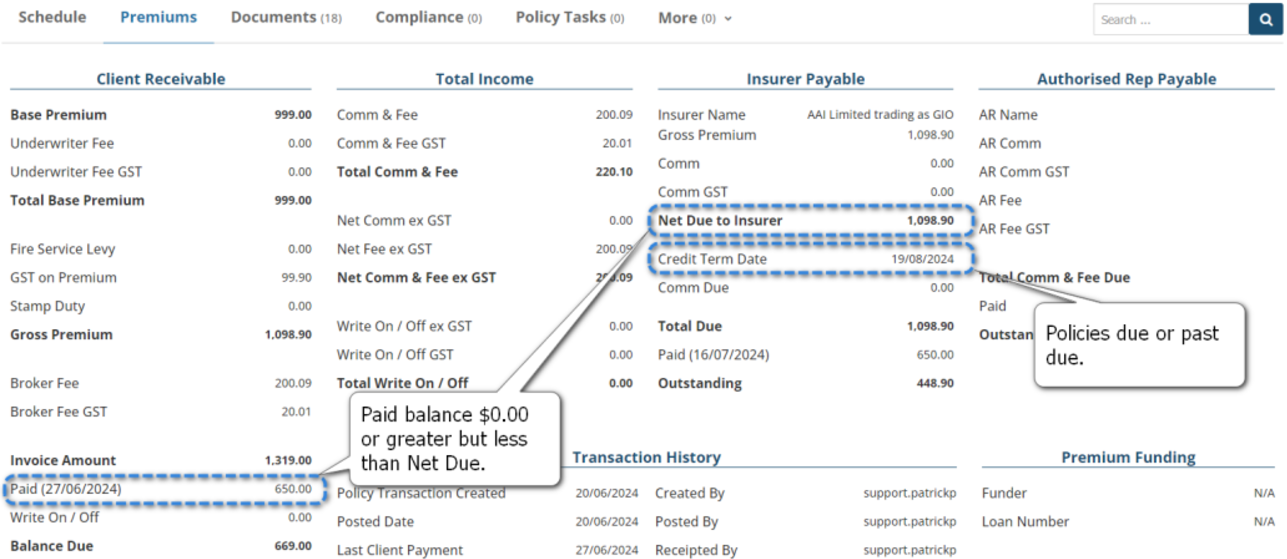
- Policies Past Insurer Credit Terms 0 Days - sends a daily email with an Excel attachment of policies due to the Insurer. The policies sent to the Insurer are due or past the Insurer Payable Credit Term Due Date and have the Client Receivable as $0.00 or greater but less than the Net Due to Insurer balance.
- Policies Past Insurer Credit Terms 7 Days - sends a daily email with an Excel attachment of policies due to the Insurer. The policies sent to the Insurer are due 7 days or more past the Insurer Payable Credit Term Due Date and have the Client Receivable as $0.00 or greater but less than the Net Due to Insurer balance.
 4. When applicable, enter additional email addresses in the CC Email To field. For example, enter relevant internal staff email addresses so that you get a copy of what is sent to the insurer.
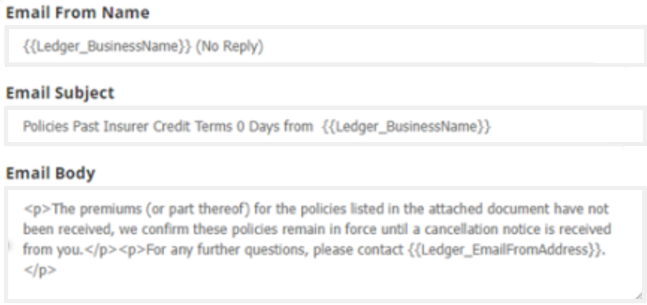
5. Enter how you want to display information in the Email From Name and Email Subject field.
6. Complete the Email Body field - text entered her must be in an HTML format.
7. Select Save.
 QUICK TIP: When completing the Email From Name, Email Subject and Email Body fields, you can use HTML codes to auto-insert information already saved in INSIGHT, for example, the Insurer Name. Refer to the the HTML code section to see which codes you can use in these fields.
 HTML Codes
Ledger_BusinessName Ledger_ABN Ledger_ACN Ledger_AFS Ledger_EmailFromAddress Ledger_FAPLicenceNumber Insurer_InsurerName Insurer_TradingAs Insurer_Addressee Insurer_RefCode Insurer_ABN Insurer_Website Insurer_AddressLine1 Insurer_AddressLine2 Insurer_AddressLine3 | Insurer_Suburb Insurer_State Insurer_PostCode Insurer_Country Insurer_PrimaryContactName Insurer_PrimaryContactJobTitle Insurer_PrimaryContactSalutation Insurer_PrimaryContactPhone Insurer_PrimaryContactPhone2 Insurer_PrimaryContactFax Insurer_PrimaryContactMobile Insurer_PrimaryContactEmail |
Sample:
Was this article helpful?
That’s Great!
Thank you for your feedback
Sorry! We couldn't be helpful
Thank you for your feedback
Feedback sent
We appreciate your effort and will try to fix the article