Creating an Account
It's time to create your first account. Steadfast Apps offers multiple convenient ways to do this, depending on where you are in the platform.
 QUICK TIP:  Use the method that suits your workflow!
Whether you're on the home page, navigating through the left menu, or using the quick action bar - Steadfast Apps makes it easy to create an account from wherever you are.

Look for the “+ Add Account” or “+ New” button to get started in seconds.
Ways to Create an Account
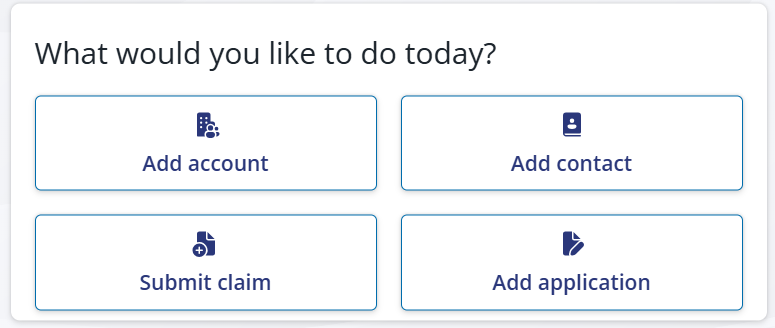
Home Page Widget
From your dashboard, use the “Add Account” option in the widget. This is a quick way to get started right from your home screen.
Quick Action in the Header Bar
Click the “+ New” button in the top header bar. This gives you fast access to create a new account from anywhere in the app.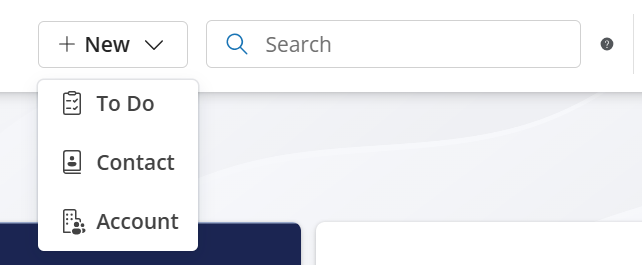
Accounts Overview Page
Navigate to Accounts in the left-hand menu.
Once you're on the Accounts Overview page, click the “+ Create Account” button at the top right to begin.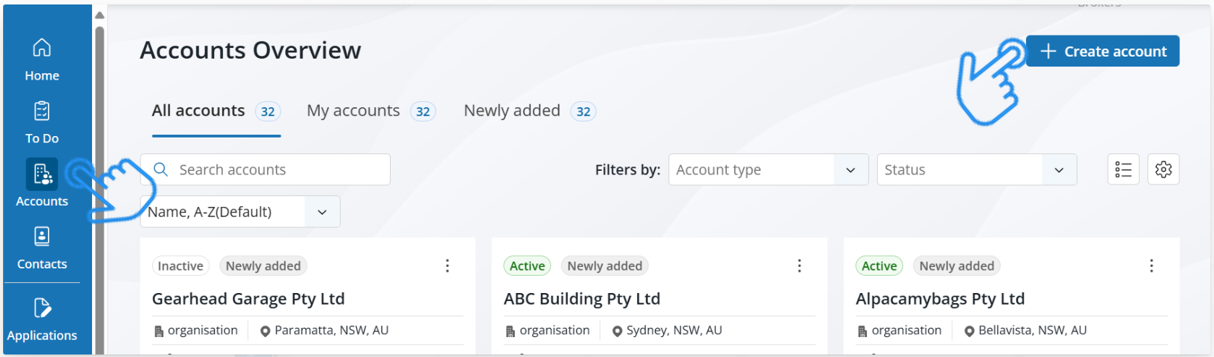
Creating an account in Steadfast Apps is designed to be intuitive and aligned with familiar fields from INSIGHT, making your transition smooth and consistent with our long-term development goals.
Need Help? Click Details to see the Step-By-Step Process
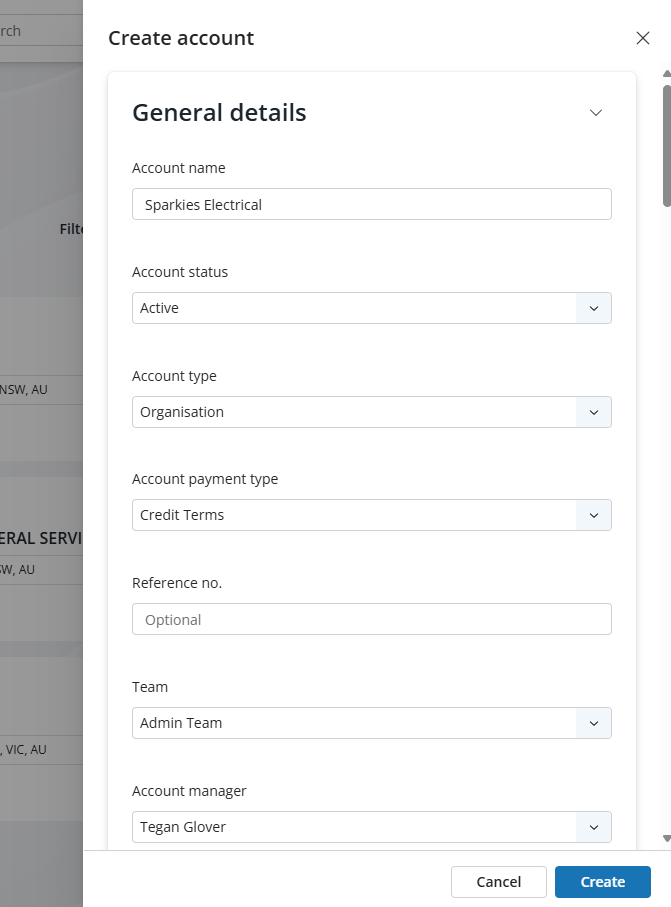
General Account Details
When creating a new account, you’ll be prompted to enter the following:
- Account Name
- Account Status (e.g. Active, Prospect, Inactive)
- Account Type (Organization or Individual)
- Account Payment Type
- Reference Number (optional)
- Assigned Team
- Account Manager
If an account’s status is set to Prospect or Inactive, you won’t be able to create an application for that account.
Make sure the status is set to Active before proceeding with application creation.
Business Details
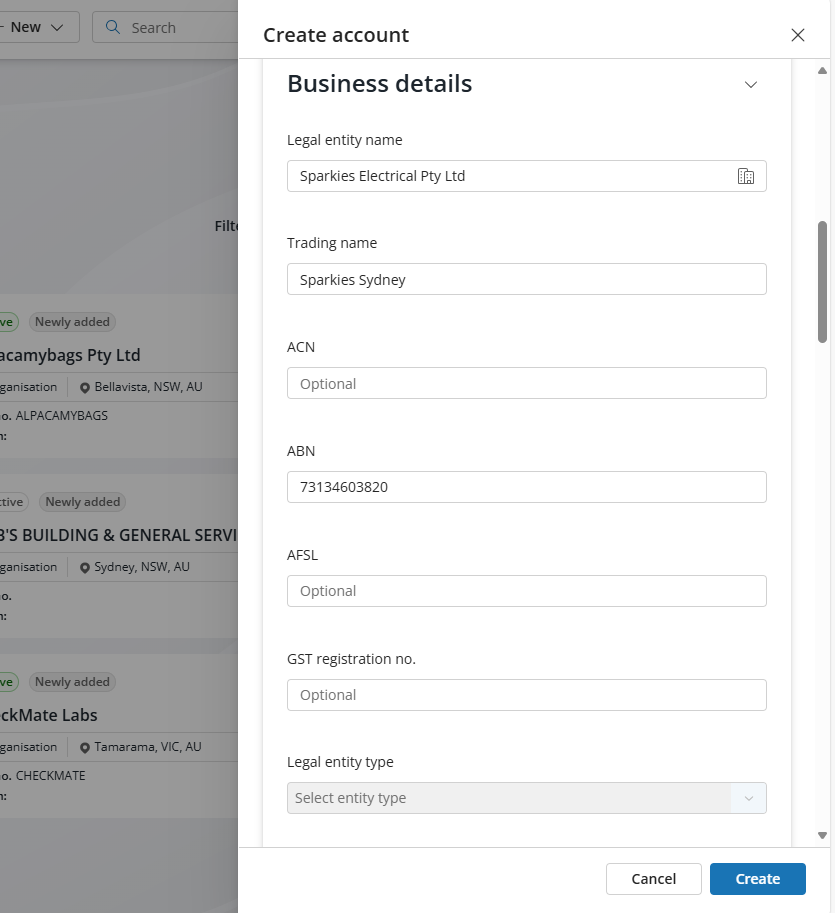
These fields help define the legal and operational identity of the account:
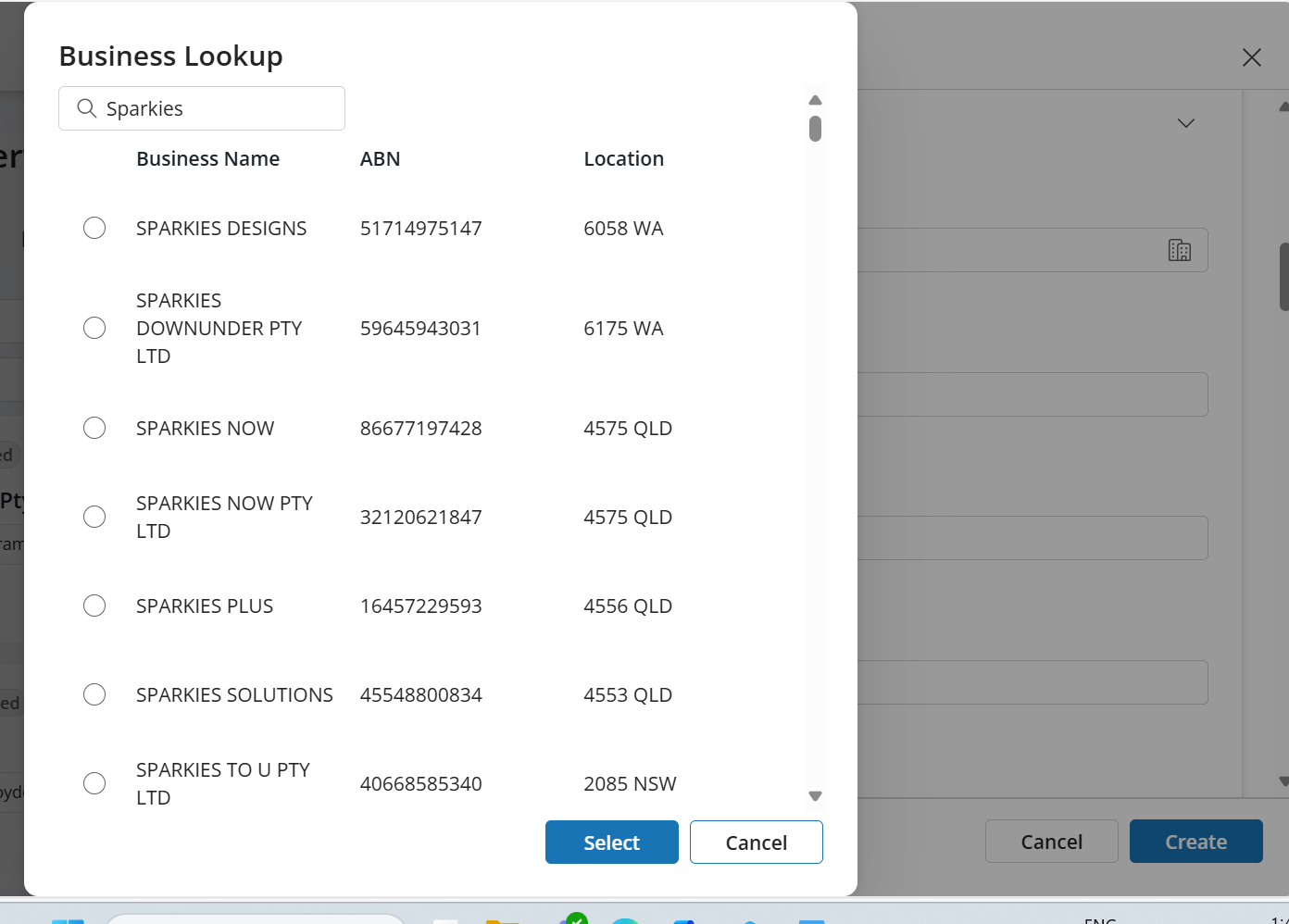
- Legal Entity Name
- Linked to the ABN Lookup website for easy validation.
- Trading Name
- ABN
- ACN
- AFSL (optional)
- GST Registration Number (optional)
Account-Level Contact Information
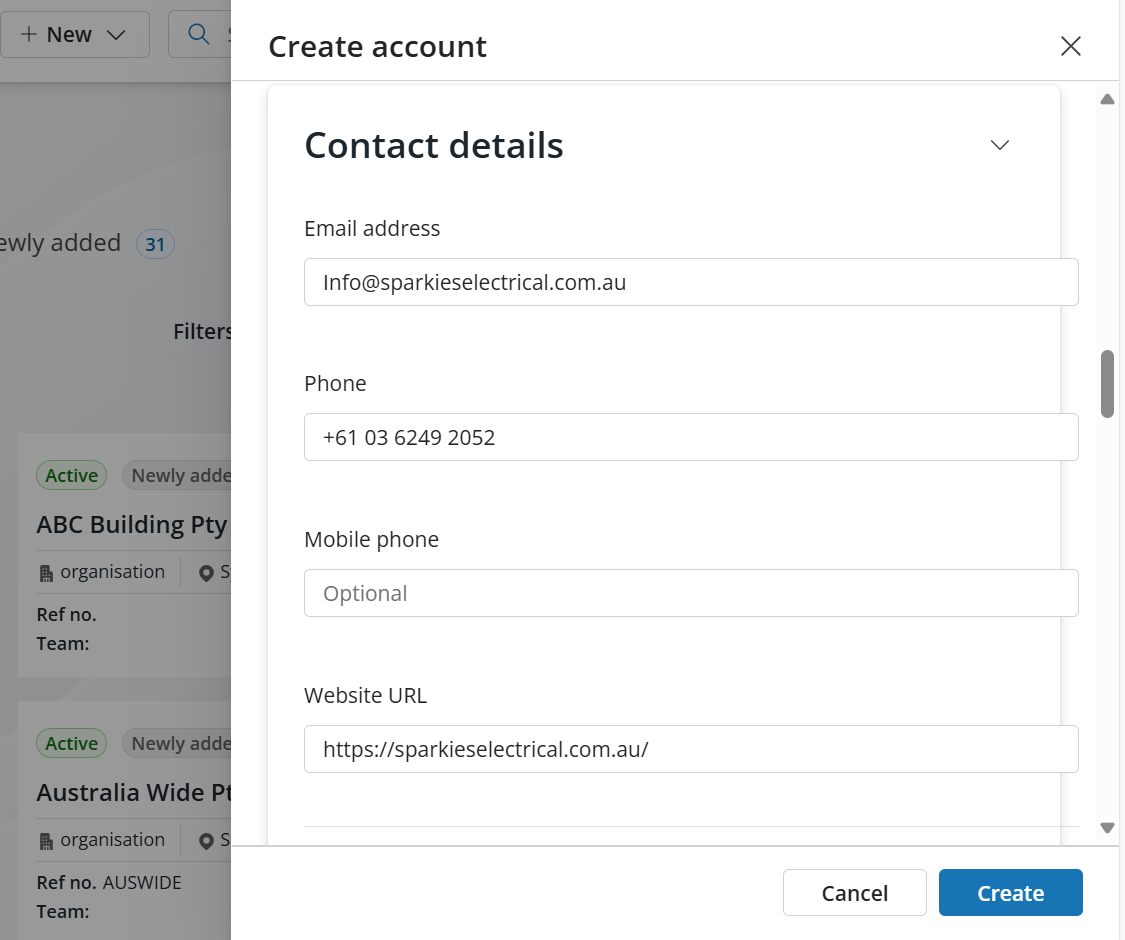
These details should reflect business-level contact info, not individual contacts (we’ll cover contacts in the next step):
- Email Address (e.g. example@business.com)
- Phone (optional)
- Mobile Phone (optional)
- Website URL (optional)
Address Details
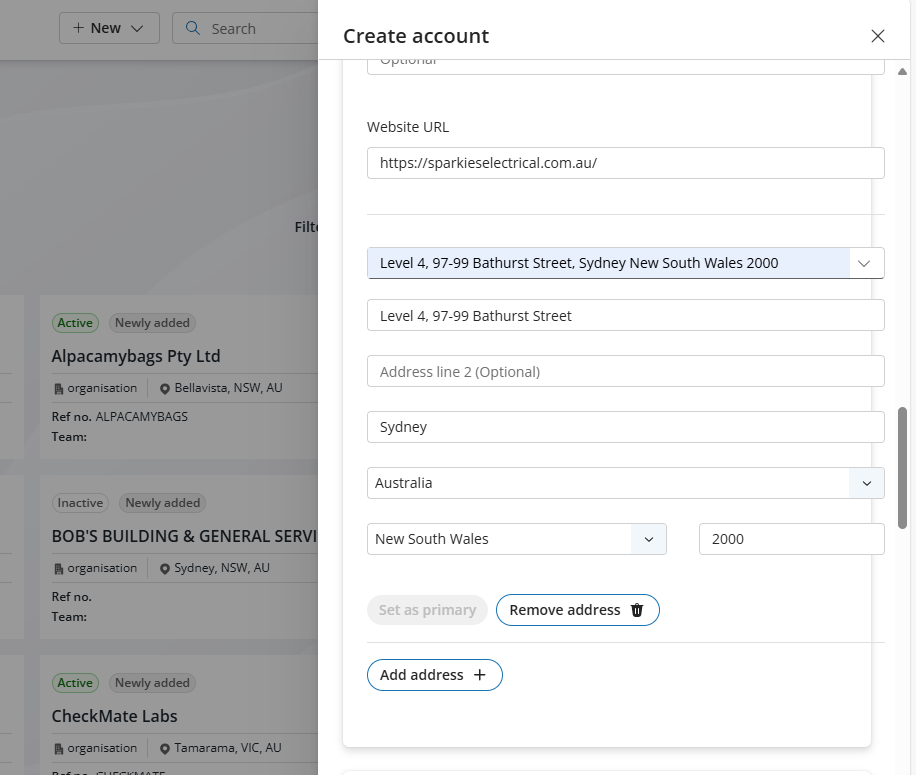
The address bar includes a smart search feature that auto-fills location data. Alternatively, users can manually enter the address if needed.
You can also add multiple addresses if need, and set Primary Address locations.
Optional Sections
These sections provide additional flexibility and data enrichment:
Other Business Details
- Classification
- Compliance Type
- Vulnerable Client
- Industry Type
Bank Details
- Bank Name
- Bank Account Name
- BSB Number
- Bank Account Number
- Branch Name
- ABA Reference Number
INSIGHT Integration
- Sales Team ID
- Service Team ID
- Branch ID
- Authorised Rep ID
- Client Permissions Groups ID
Once you’ve filled in all the required details, simply click “Create Account” — and voilà!Your account is now live and ready to use within Steadfast Apps.

A Note on Sync Time
After creating your account, it may take a moment to appear in the Account Overview, Newly Added, or Search Bar.

Steadfast Apps is working in the background to establish potential connections and future pathways for your account.

Feel free to give it a moment or go ahead and create your next account while it syncs!
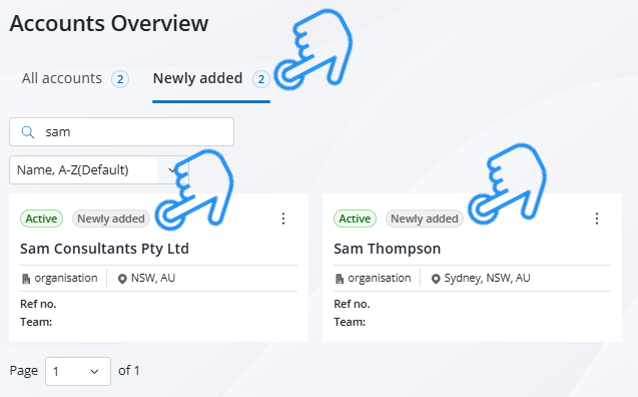

Editing Account Details in Steadfast Apps Whether you're updating business information, adjusting contact details, or refining compliance fields editing an account is simple and flexible.
Need Help? Click Details to see the Step-By-Step Process
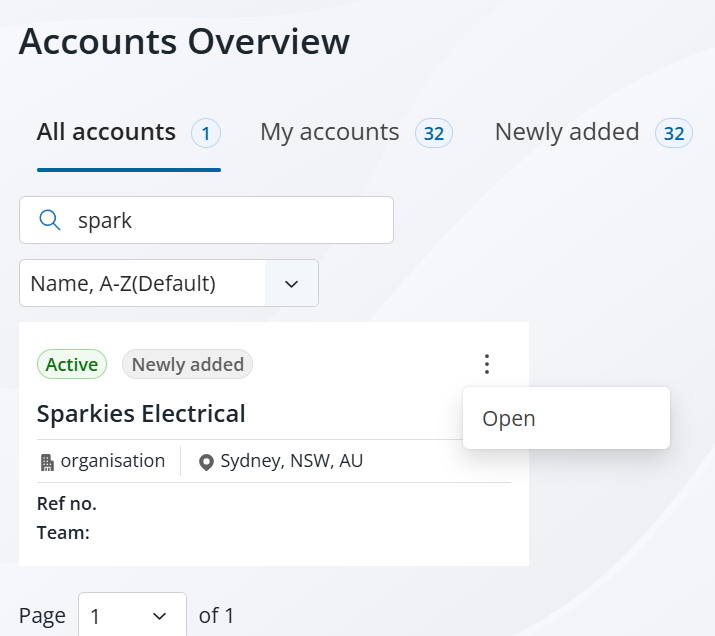
Locate the Account you wish to update using the Account Overview page or by using the Search Bar and click on the three vertical dots menu to see More Options, from there you can Open the account
Then click on the Edit Account Button
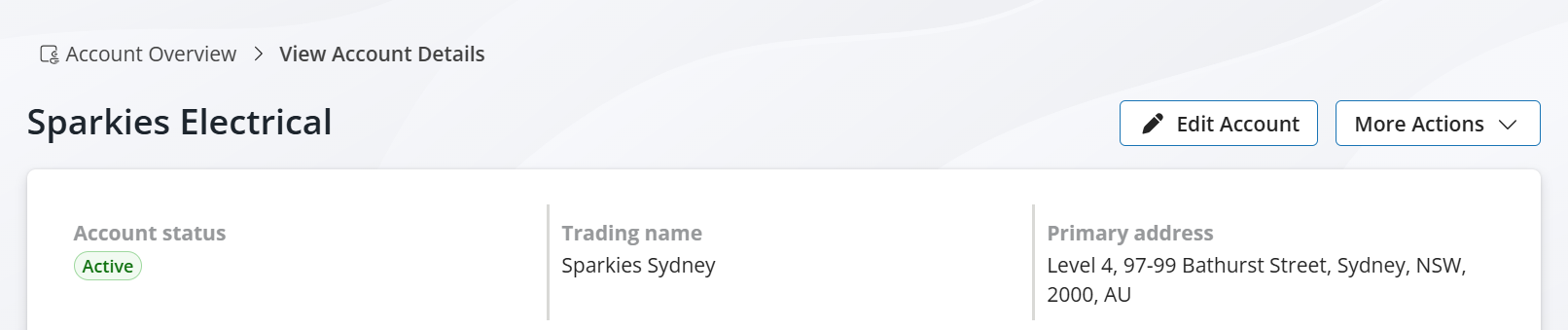
After making the required changes, Click Save Account

Once you've saved your changes, you should receive a success notification confirming that your updates have been applied.
Your account details are now up to date and ready to go!
Next Step: Adding Contacts
Once your account is created, the next step is to add individual contacts associated with the business. We’ll walk through that in the following article.
 Something got you stumped?
Our team is here to help! We know change can be tricky, but we've got your back.
Contact our support team here and well get back to you shortly
Was this article helpful?
That’s Great!
Thank you for your feedback
Sorry! We couldn't be helpful
Thank you for your feedback
Feedback sent
We appreciate your effort and will try to fix the article