Creating A Contact
Creating a contact in Steadfast Apps is just as flexible as creating an account, with multiple entry points to suit your workflow.
Ways to Create a Contact
You can add a new contact using any of the following methods:
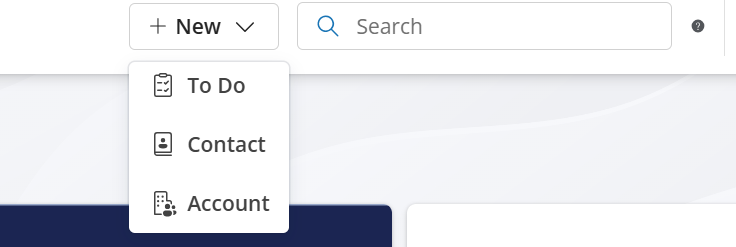
- Quick Action Bar - Click the “+ New” button at the top of the screen.
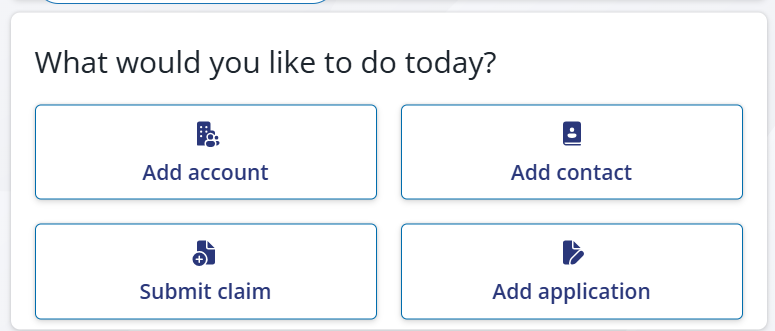
- Dashboard Widget - Use the “Add Contact” option directly from your home page.
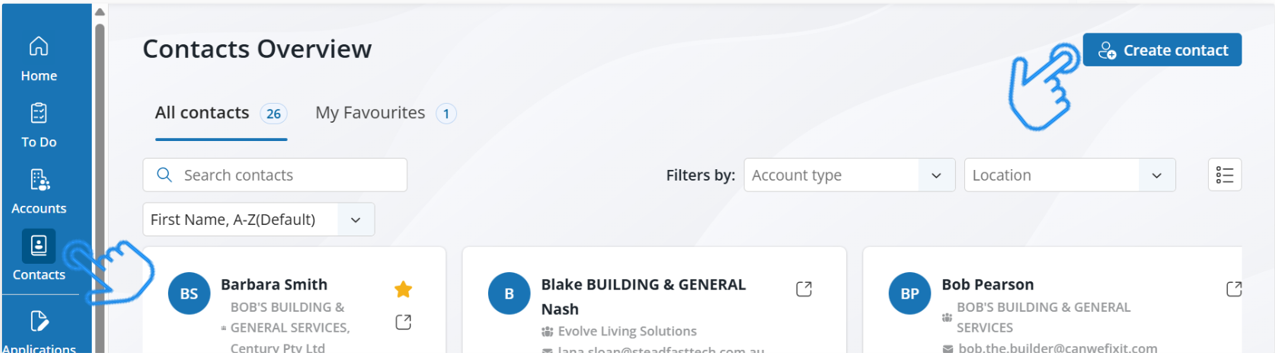
- Left Menu Navigation - Go to Contacts, then click “Create a New Contact”.
How Contacts Work in Steadfast Apps
Unlike traditional systems, contacts in Steadfast Apps can be linked to multiple accounts and policies.

Think of it from a business perspective: the same accountant might work with several businesses in their area. This flexible structure allows for more accurate and efficient relationship management.
Need Help?
Click the Details button to view step by step instructions.
Creating a Contact in Steadfast Apps
In addition to standard fields, Steadfast Apps includes optional fields to support future reporting and client sensitivity:
- First Name
- Middle Name (optional)
- Last Name
- Nickname (optional)
- Sex (optional)
- Religion (optional)
- Marital Status (optional)
- Contact Information:
- Email Address
- Phone (optional)
- Mobile Phone (optional)
- Website URL (optional)
- Addresses: Use the smart search bar to auto-fill, or enter manually
Multiple addresses can be added and again, You can designate a Primary Address
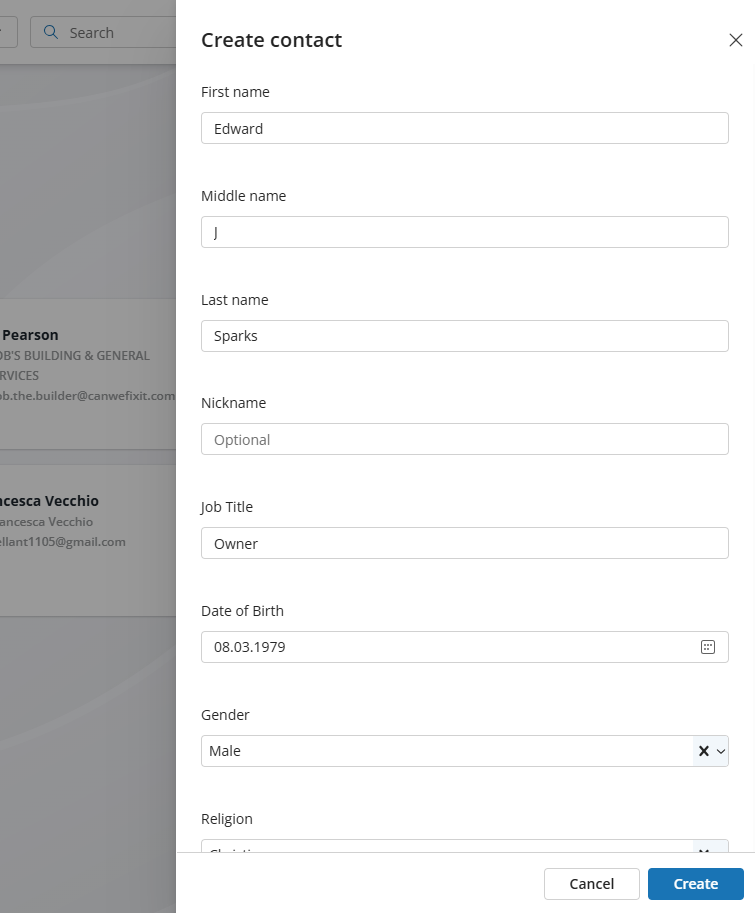
Once you’ve added all the fields you wish to capture, click Create.
You should receive a success notification confirming that your contact has been saved.
Your contact is now created and ready to be linked to relevant accounts
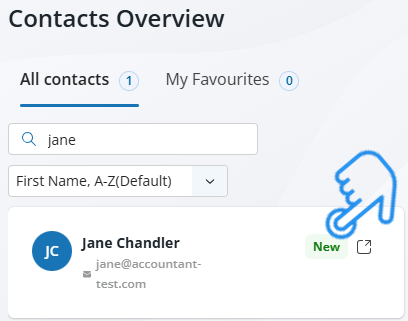

Edit a Contact in Steadfast Apps
1. Locate the contact you wish to edit using the search bar or contact list.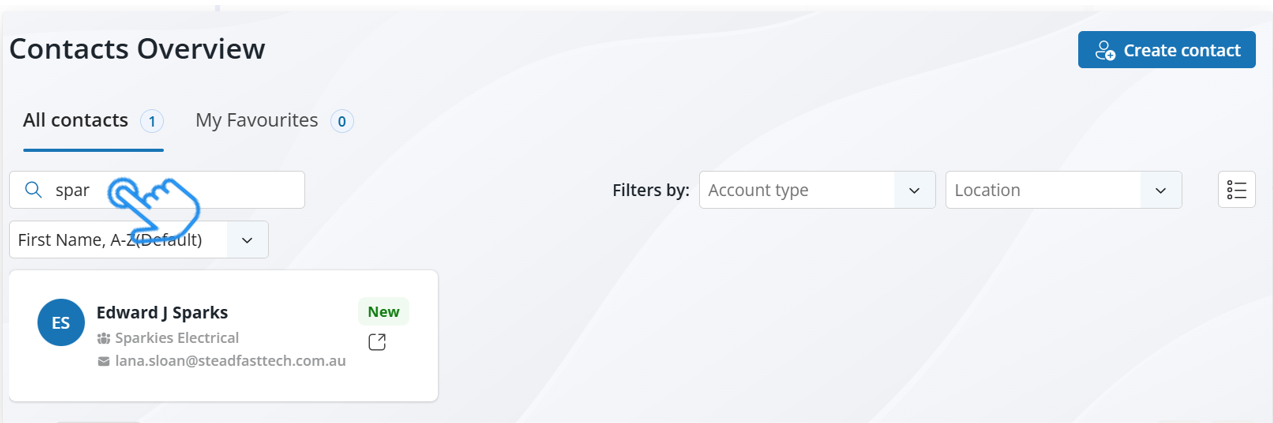
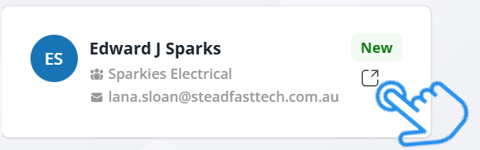
2. Click the square icon with an arrow to open the contact profile.
3. Under the contact’s name, click the pencil icon to launch editable fields.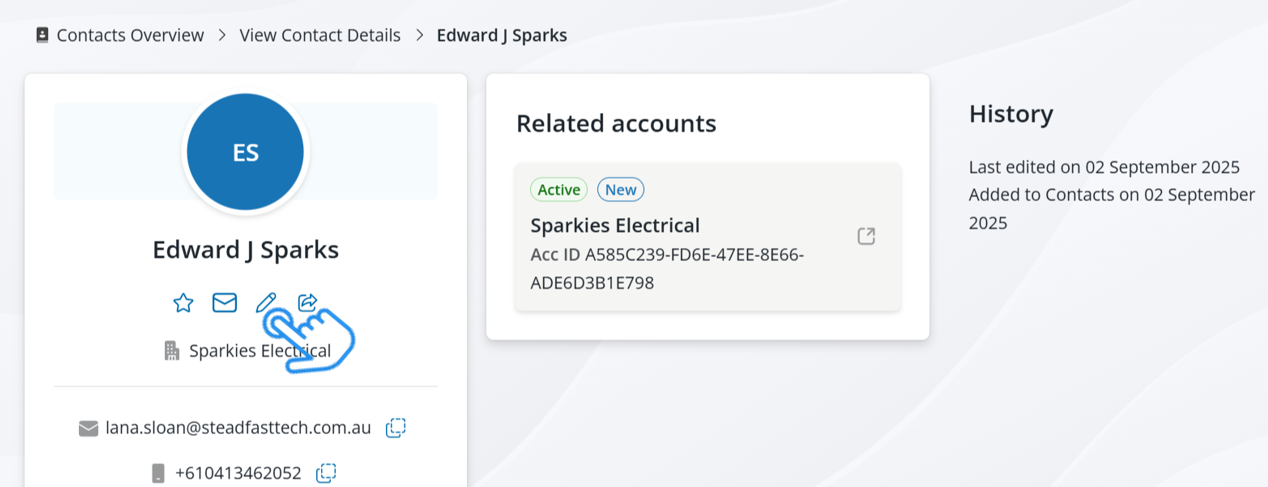
4. Make any necessary updates — including personal info, contact details, addresses, or account links.
5. Once finished, click Update.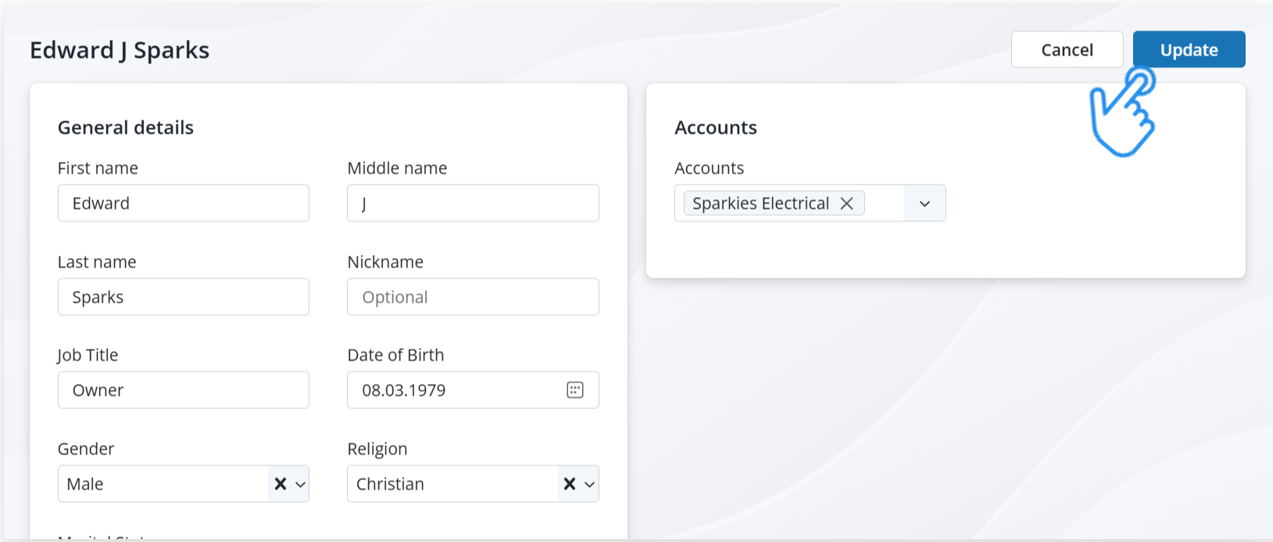
6. After saving, you’ll receive a success notification confirming your updates have been applied.
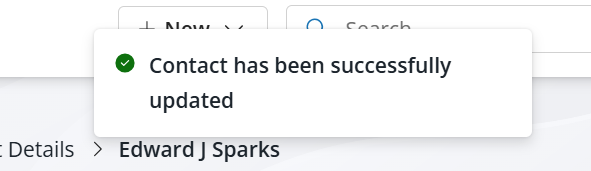
Your contact is now up to date and ready to use across accounts and policies.
Ready to move forward? Now that your contact is created, it’s time to start an application.
Something got you stumped?
Our team is here to help! We know change can be tricky, but we've got your back.

Contact our support team here and well get back to you shortly
Was this article helpful?
That’s Great!
Thank you for your feedback
Sorry! We couldn't be helpful
Thank you for your feedback
Feedback sent
We appreciate your effort and will try to fix the article