Click to go to:
Introduction
- Each process in INSIGHT has its own wizard. For example, the Add Client wizard or the Receipts & Allocations wizard.
- Instead of going through one long page with multiple fields to enter information in, the wizard simplifies & breaks down each step into the necessary amount of pages needed to complete the overall process.
- Once you select a process, INSIGHT will launch the relevant wizard and present you with the first page of information you need to complete. To assist with understanding the wizard, this article will discuss the elements that make up a wizard.
Pages
To simplify the collection of information to complete a process, the wizard will group the information into pages for you to complete.
You can view the pages on the right side of the wizard:
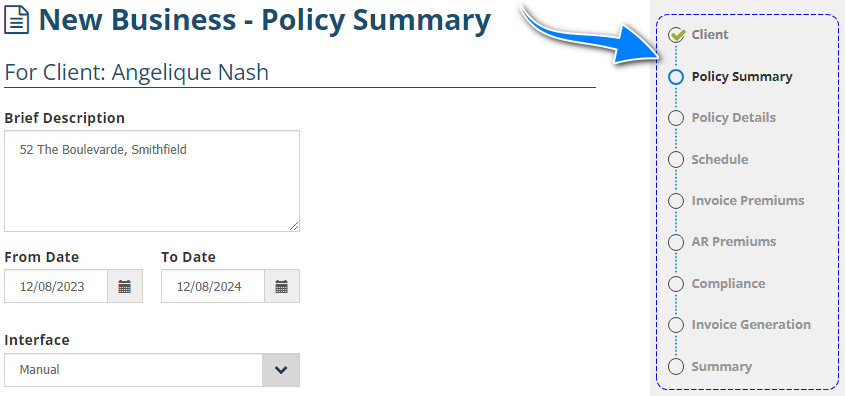
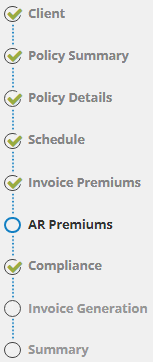
 When you complete a page and select Next, the wizard will place a green checkmark beside the completed page and take you to the following page.
When a page has a  green checkmark, you can select the page to go directly to it whenever you need to refer back to its information.
 Pages without a green checkmark but with grey circles are pages that still need to be completed.
 A page without a green checkmark but with a blue circle indicates the page you're currently on.
Mandatory Fields
Mandatory fields cannot be left blank & will be marked with the text Required.
In the case a mandatory field is left blank, once you navigate away from the page, the field will display a message to indicate it is required to enter information in it. 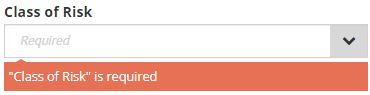
Dropdown Fields
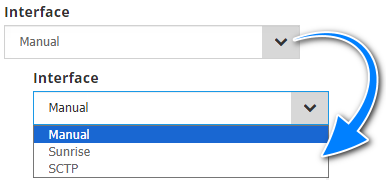
Instead of a manual entry field, some fields will have a down arrow on the right side. This means that they are set up with pre-determined options for you to choose from.
- When you select the down arrow, the field will drop down to display the set options for you to select from.
- Select the option you wish to proceed with, then the field will auto-fill with the option you've chosen.
- If the field is not locked, you can change your choice by re-selecting the down arrow & choosing a different option.
Date Fields
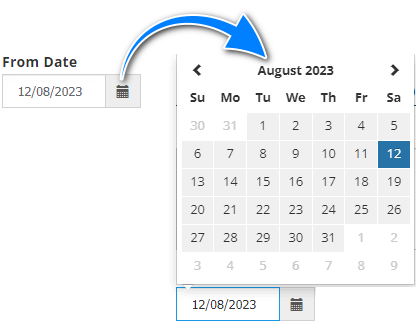
 Fields with a calendar icon on the right side indicate that it requires a date to be entered into the field.
 You can manually enter the date or you can select the calendar icon to open up the calendar.
 Select the Calendar Title once (ie: August 2023) to change the display to months; select it again to change the display to years.

Alternatively, you can use the left & right arrows to find your desired date.
Record Locking
To prevent duplication of processing, INSIGHT has a built-in safety feature so that only one user can make a change to a record at one time.
If another user was to update the same record or complete the same process, a message similar to the one below will be displayed:
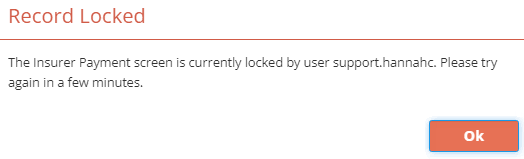
The first user needs to complete their updates or exit from the record before another user can gain access to make changes to the same record.
Hyperlinks
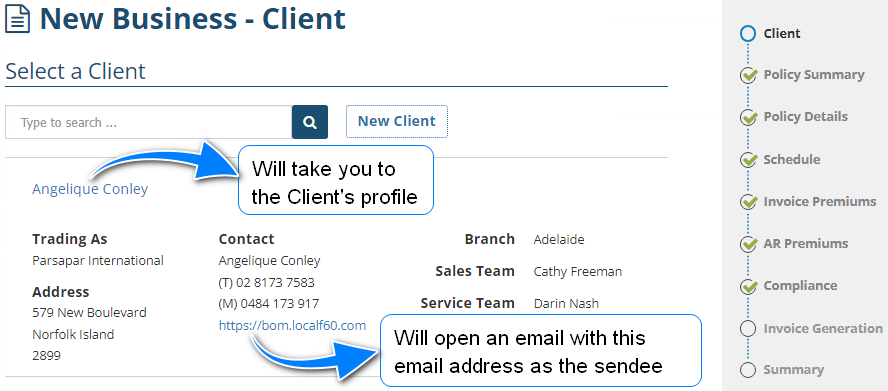
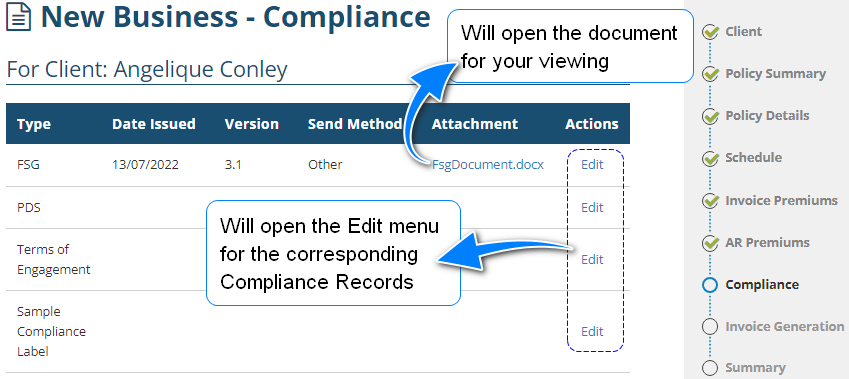
You'll notice that INSIGHT has some text in light blue, this is how you identify a hyperlink.
A hyperlink will take you to another page or open an item for you. Below are examples:
Next, Previous & Exit
All wizards will have buttons to help you navigate through the pages of the wizard:
 | If there is a following page, this takes you to the following page. |
 | If there is a prior page, this takes you to the prior page. |
 | This allows you to leave the wizard and will present you with the options to Save, Don't Save or Cancel. |
 | This will save your work done in the wizard and allow you to leave. |
 | This will NOT save your work done in the wizard and allow you to leave. |
 | This will return you to the wizard so you can continue working through its pages. |
Was this article helpful?
That’s Great!
Thank you for your feedback
Sorry! We couldn't be helpful
Thank you for your feedback
Feedback sent
We appreciate your effort and will try to fix the article