Click to go to:
How to Hide/Include Widgets in My Dashboard?
How to Edit the Widget Layout?
Latest Policies Due for Renewal
Introduction
My Dashboard is a visualisation tool that displays information in one place and an easy-to-digest form. It uses the information in My Lists to display widgets with graphs and statistics so that you can analyze & evaluate the status of various business processes related to:
 My Lists My Lists |  Latest Policies Due for Renewal Latest Policies Due for Renewal |
 Recent Client Activity Recent Client Activity |  Overdue Policies Overdue Policies |
 Client Payments Due Client Payments Due |  Policies due for Renewal Policies due for Renewal |
 Fees and Commission Fees and Commission |  Income by Transaction Type Income by Transaction Type |
QUICK TIPS:
 If you've applied filters to the individual lists in My Lists, the information displayed in My Dashboard will also reflect the same filters. If you've applied filters to the individual lists in My Lists, the information displayed in My Dashboard will also reflect the same filters. |  Brokerage owners or principals can get an overview of the entire business by NOT applying any filters. Brokerage owners or principals can get an overview of the entire business by NOT applying any filters. |
 Generally, the filters are used to just show you your client portfolio (typically through filtering by your own Sales Team, Service Team or Authorised Reps). Generally, the filters are used to just show you your client portfolio (typically through filtering by your own Sales Team, Service Team or Authorised Reps). |  Applying filters to the individual lists in My Lists results in less information displayed, therefore, faster loading time for My Dashboard. Applying filters to the individual lists in My Lists results in less information displayed, therefore, faster loading time for My Dashboard. |
 Managers/supervisors can get an overview of their team or entire branch through filtering by the appropriate Sales Team, Service Teams Branch. Managers/supervisors can get an overview of their team or entire branch through filtering by the appropriate Sales Team, Service Teams Branch. |  Once you have set the filters on My List, refresh the Dashboard view by reselecting My Dashboard. If it’s open in a separate browser tab, use the Refresh button/option on the browser. Once you have set the filters on My List, refresh the Dashboard view by reselecting My Dashboard. If it’s open in a separate browser tab, use the Refresh button/option on the browser. |
How to Hide/Include Widgets in My Dashboard?
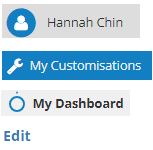
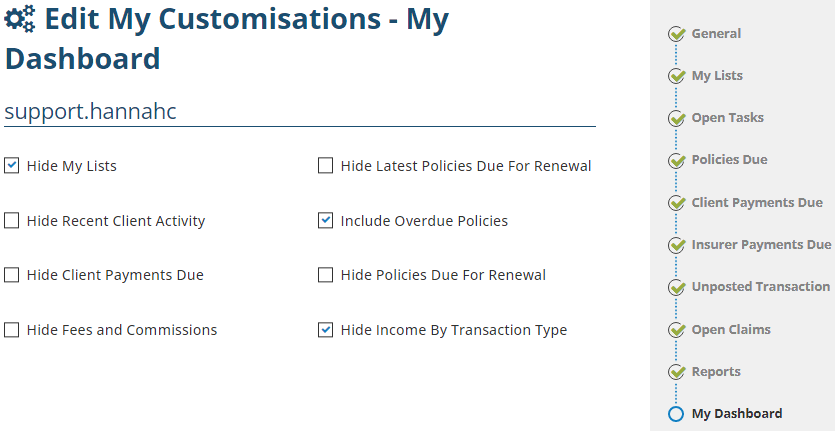
Go to your Profile, select My Customisations, then My Dashboard.
From there, select Edit and make your selections on which parts you wish to hide or include. When done, ensure to save your changes.
Where to find My Dashboard?
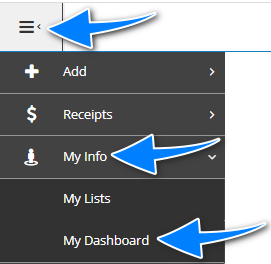
Refer to the Menu, select My Info then, My Dashboard.
How to Edit the Widget Layout?
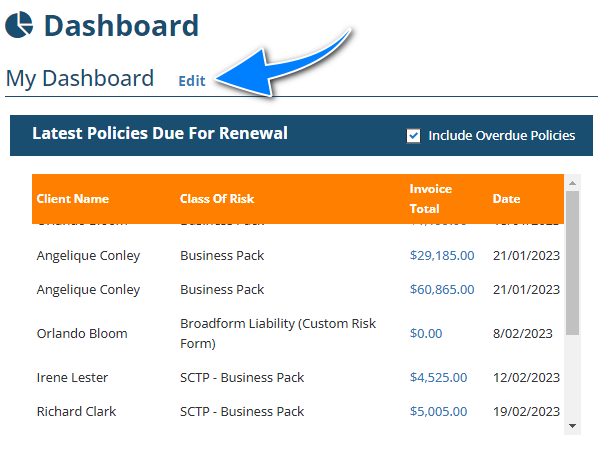 Selecting Edit allows you to reposition & resize the widgets so that the layout is more meaningful to you.
From here, you can drag & drop the widgets into your preferred positions.
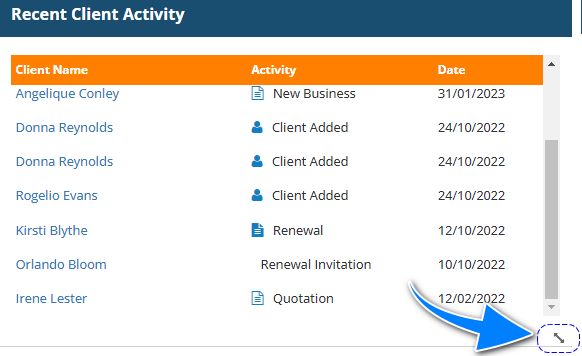 When hovering over a widget, you'll notice a double-sided arrow in the bottom left corner. Select & hold the arrow, then move your cursor till your preferred widget size is reached.
How to Use the Widgets?
This section goes through how to use each widget:
Recent Client Activity
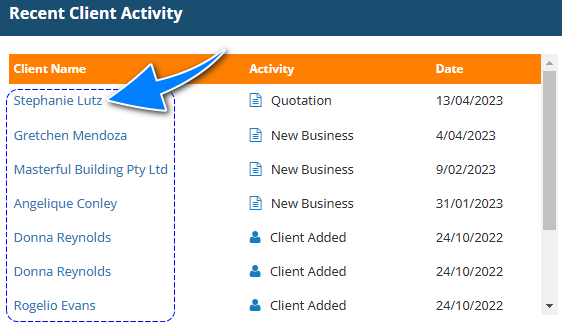
 Client Name - when you select the name hyperlink, you'll be taken to the Client's profile.
 Activity - indicates where the activity was done by the user logged in.
 Date - indicates when the activity was done by the user logged in.
My Lists
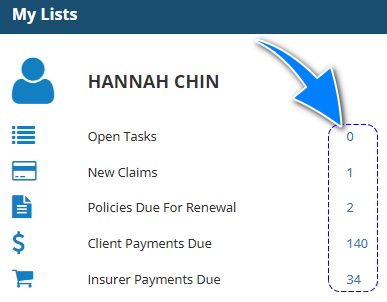
 This widget shows a tally for 5 out of the 6 lists in My Lists (Unposted Transactions list not included).
 When you select the number hyperlink, you'll be taken to the corresponding list in My Lists.
Latest Policies Due for Renewal
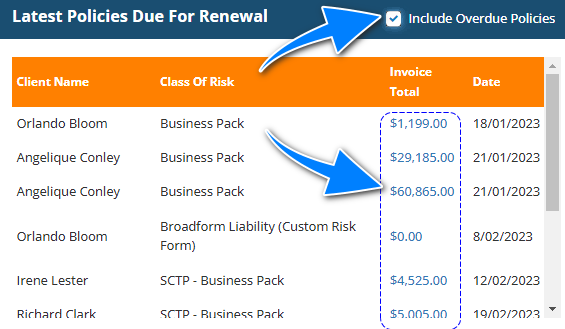
Include Overdue Policies - updates the list to either include or hide overdue policies.
When you select the Invoice Total amount hyperlink, you'll be taken to the corresponding Policy profile.
Policies Due for Renewal
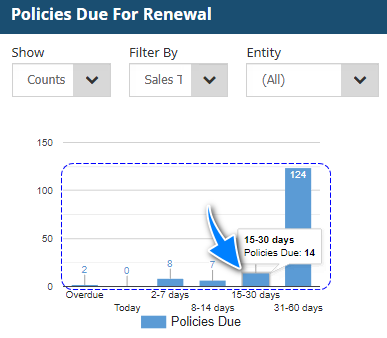
Show - has the options of Counts & Values. Counts will display the number of policies. Values will display the monetary value.
Filter By - has the options of None, Branch, Sales Team, Service Team & Authorised Rep. Choosing None will display all policies due for renewal. Alternatively, you can filter with the other options to look at specific policies.
Entity - when None is selected in Filter By, this field is greyed out. When another option is selected in Filter By, the respective entities will be displayed.
Bars - when you hover over the bars, it will display the Count or Values of that ageing period. You can also select the bar and be taken to the Policies Due for Reneal list with that ageing period filter applied.
Income by Transaction Type
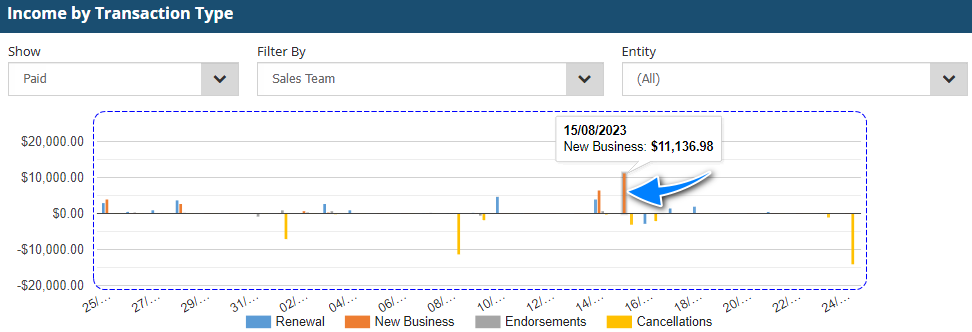
Show - has the options of Paid & Unpaid. Paid will display how much income has been paid per transaction type. Unpaid will display how much income is yet to be paid per transaction type.
 Filter By - has the options of None, Branch, Sales Team, Service Team & Authorised Rep. Choosing None will display all income paid/unpaid per transaction type. Alternatively, you can filter with the other options to look at specific income amounts.
Entity - when None is selected in Filter By, this field is greyed out. When another option is selected in Filter By, the respective entities will be displayed.
Bars - when you hover over the bars, it will display the date, transaction type and income amount.
Fees and Commissions
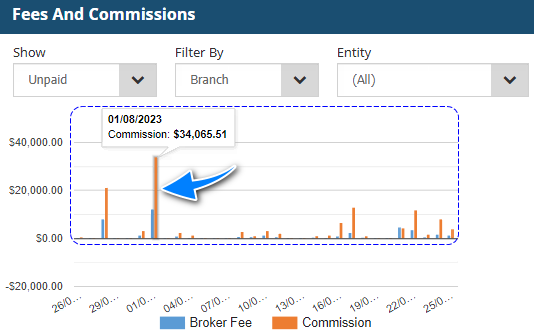
Show - has the options of Paid & Unpaid. Paid will display how much fees/commissions have been paid. Unpaid will display how much fees/commissions are yet to be paid.
Filter By - has the options of None, Branch, Sales Team, Service Team & Authorised Rep. Choosing None will display all fees/commissions, depending on the chosen paid/unpaid filter. Alternatively, you can filter with the other options to look at specific amounts.
Entity - when None is selected in Filter By, this field is greyed out. When another option is selected in Filter By, the respective entities will be displayed.
Bars - when you hover over the bars, it will display the date and fees/commission amount.
Client Payments Due
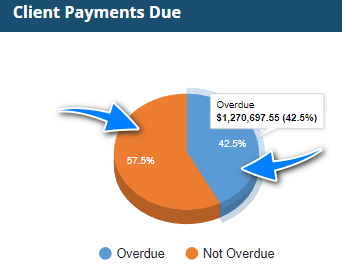
This widget uses a pie chart to display the difference between overdue and not overdue Client Payments.
Hovering over a section in the pie chart will display the amount.
Selecting a section of the pie chart will direct you to the Client Payment Due list with the corresponding Overdue or Not Due filter.
Was this article helpful?
That’s Great!
Thank you for your feedback
Sorry! We couldn't be helpful
Thank you for your feedback
Feedback sent
We appreciate your effort and will try to fix the article