Click to go to:
Introduction
| If you have permission to add an authorised representative, you can use the Add menu and select Add Authorised Rep. | 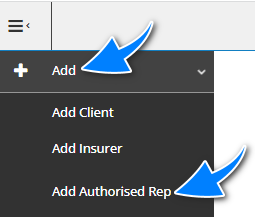 |
Alternatively, you can first search for the authorised representative you wish to add and check if they are already in the system. When the authorised representative is not found in the search results, select New Authorised Rep to create the entity.
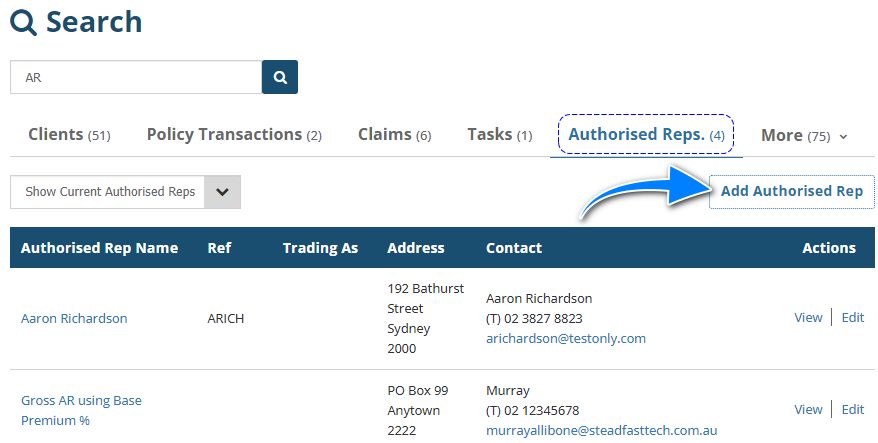 Regardless of how you choose to create the authorised rep, you'll be directed to the Add Authorised Rep wizard, where you'll complete the Profile, Commission and Bank pages of the wizard.
- Most of the fields on the pages are self-explanatory, however, we'll highlight fields that require further explanation.
- All fields marked as Required must be completed before proceeding to the next page.
Profile
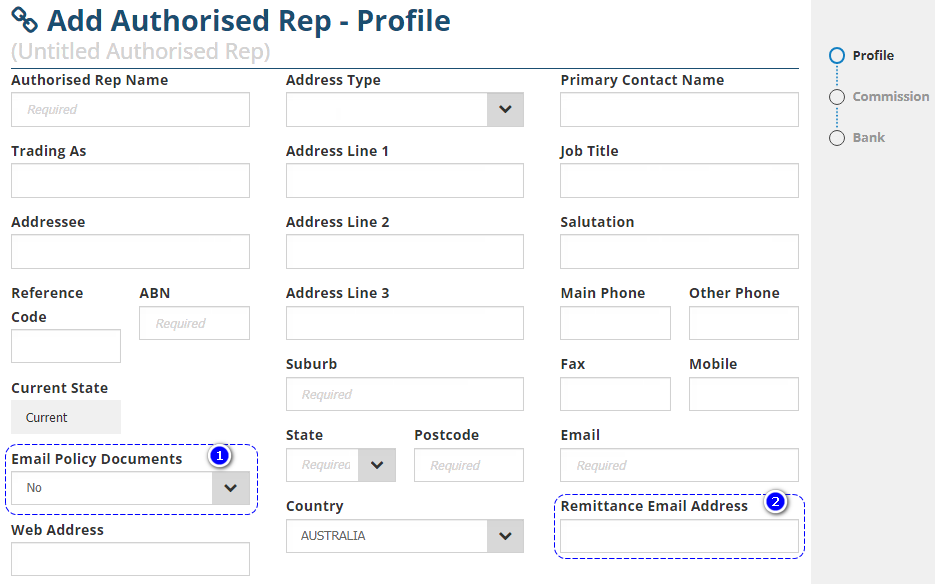
1. Email Policy Documents - There are 2 options for this field:
- Yes: Will default to selecting Email as an Output method when sending the policy documents.
- No: Will NOT default to selecting any Output methods when sending the policy documents.
2. Remittance Email Address - This is specifically for the recipient of the authorised rep remittance.
Commission
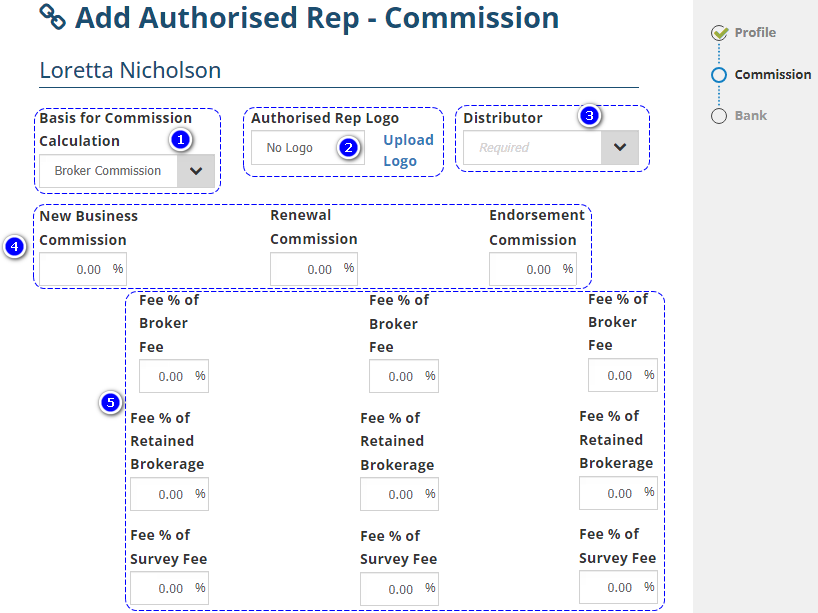
1. Basis for Commission Calculation - There are 2 options for this field:
- Broker Commission
- Base Premium
2. Authorised Rep Logo - Uploading the AR's logo here will display the AR logo on client-facing documentation such as the invoice - Kindly refer to your own business practices for when to use this field.
3. Authorised Rep Category 1 - 3 - Administrators can create up to 3 additional Authorised Rep Categories to further classify ARs - Kindly refer to your own business practices for when to use these fields.
4. Commission % per transaction type - Indicates the commission % the AR receives per transaction type.
5. Fee % per transaction type - Indicates the fee % the AR receives per transaction type.
 NOTE: Administrators can set up up to 3 broker fee types. When using multiple broker fees, the fee % is indicated for each broker fee type per transaction type.
Bank
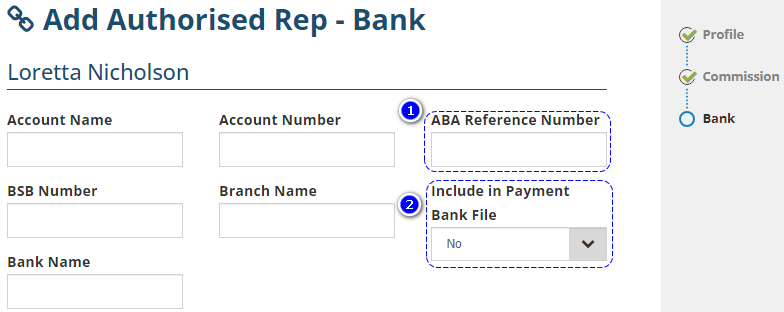
1. ABA Reference Number - When applicable, this is provided by the bank if the AR is being paid via Payment Bank (ABA) File.
2. Include in Payment Bank File - Defines if payments to this AR are included in the Payment Bank (ABA) File.
How to Edit
Once an authorised rep is added to INSIGHT, you can make changes or updates to the profile as needed.
If you aren't currently viewing the AR, search for and locate the AR, then select Edit.
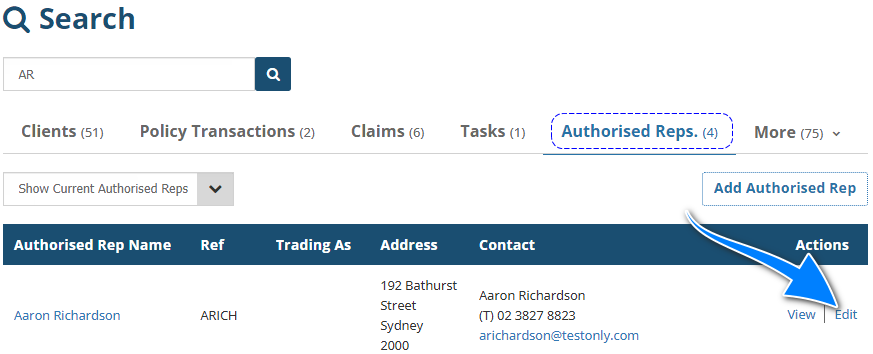
 NOTE: Ensure you select the Authorised Reps tab to view the appropriate search results.
If you are currently viewing the AR, select Menu, then Edit this Authorised Rep.
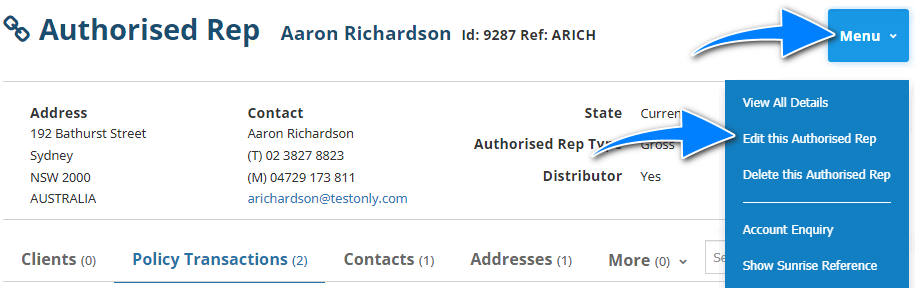
When you're in the 'edit' mode of the profile, make your changes and either select Exit, then Save or navigate to the end of the wizard and select Save.
In the event you don't wish to save your changes, select Exit, then Don't Save.
Was this article helpful?
That’s Great!
Thank you for your feedback
Sorry! We couldn't be helpful
Thank you for your feedback
Feedback sent
We appreciate your effort and will try to fix the article