Consolidating your Quotes
While brokers continue to use platforms like SCTP, or INSIGHT, along with insurer portals to obtain quotes, bind policies and generate invoices, Steadfast Apps offers a powerful way to bring the quotes together. The Quote Details feature allows brokers to compile multiple quotes into an easy-to-read proposal document, making it easier to present options to clients or create a quote slip to send to underwriters for manual assessment.
Quick Tip: Use Application Stages to Track Quote Progress

Now is a great time to start using Application Stages to manage your workflow more effectively.

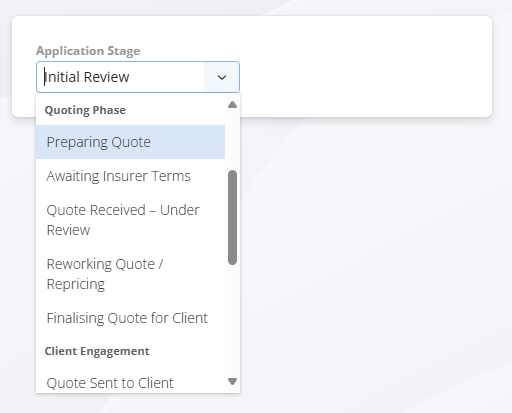
Application Stages help brokers move an application from drafted to in progress, while clearly indicating the current status of the quote process. These stages provide visibility and structure, especially when working between Apps and INSIGHT. Simply click on the most accurate phase and then Update Application to save the change.

Available Stages Include:
Preparing Quote – Initial stage where quotes are being gathered
Awaiting Insurer Terms – Quotes have been requested, awaiting responses
Quote Received – Insurer terms have been received
Under Review – Quotes are being assessed internally
Reworking Quote / Re-pricing – Adjustments are being made to quotes
Finalising Quote for Client – Proposal is being prepared for client presentation
Where to go from here? Choose your process below
Select the process you need help with, then click the Details button to view step by step instructions.
Adding Quotes in Steadfast Apps
1. Gather your Quotes
Use INSIGHT, SCTP or Insurer portals to obtain your quotes. Once you have them you're ready to enter them into Steadfast Apps
2. Add Insurer Details
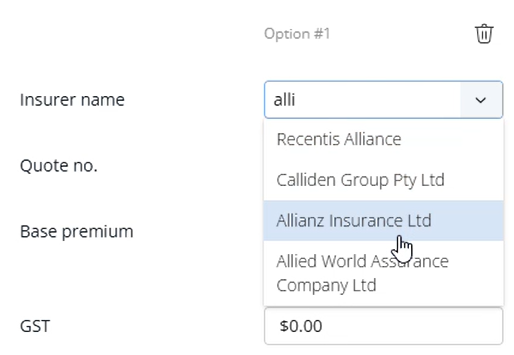
On the Quote Details page of your application, click into the insurer name field,
you can either
- Scroll to find the insurer or,
- Start typing to use the smart search lookup
3. Add Premium Details
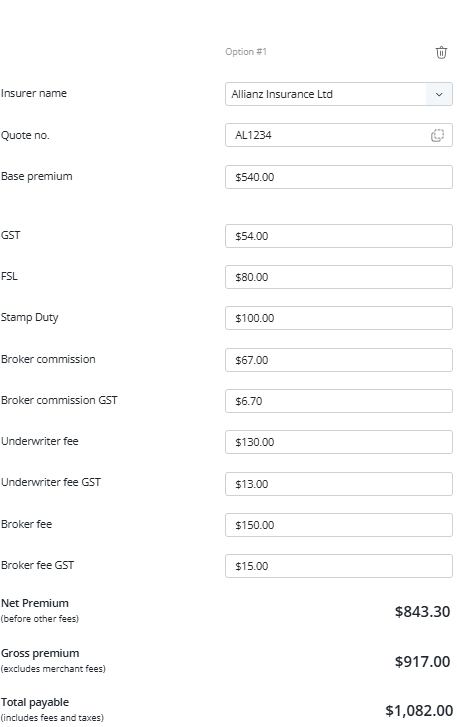
Enter the required details including
Insurer Quote Number, Base Premium, GST, Commissions
4. Repeat to add more quotes
Steadfast Apps allows 3 quote options by default.
To add more, click Add Quote Option.
Repeat the above process for each additional quote.
5. Configure Each Quote
For every quote added, you can:
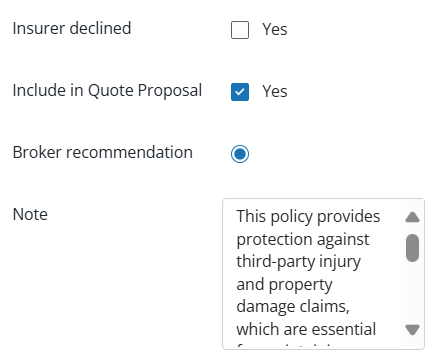
Include in Proposal Document – Tick this to show the quote in the client proposal.
Mark as Broker Recommendation – Highlight your preferred option.
Add Notes – Include any relevant commentary or context.
Mark as Insurer Declined (if applicable) - If an insurer was approached but declined to quote:
Select the declined status for that quote.
Use the Notes section to record the insurer’s reasoning (e.g., risk appetite, location, coverage type).
Tip: This helps maintain a complete market record and supports compliance and transparency.

With your quotes entered and configured, you're now ready to generate a proposal document. This document packages your selected quotes into a clean, client-ready format that can be emailed directly from Steadfast Apps.
In the next sections, we’ll walk through:
- How to generate the proposal and attach supporting documents to your quotes
- Sending a Quote Slip to an Insurer or Underwriters for additional quotes
- Sending the document via email to your client
Editing Quotes in Steadfast Apps
Sometimes, quote details may need to be adjusted —whether due to updated insurer terms, pricing changes, or corrections. Steadfast Apps makes it easy to update quote information while keeping your application workflow intact.
1. Navigate to the Quote Option Page
Open the relevant application.
Go to the Quotes section where your quote options are listed.
2 Select the Quote to Edit
Locate the quote you wish to update.
Click into the fields (e.g., Base Premium, Fees, Quote Number) and make the necessary changes.
3. Click “Update Quote”
After making your edits, click the Update Quote button to save your changes.
This ensures your proposal and internal records reflect the latest information.
4. Update the Application Stage (if needed)
You can also adjust the Application Stage at any time to reflect the current status (e.g., from "Quote Received" to "Reworking Quote").
Something got you stumped?
Our team is here to help! We know change can be tricky, but we've got your back.

Contact our support team here and well get back to you shortly
Was this article helpful?
That’s Great!
Thank you for your feedback
Sorry! We couldn't be helpful
Thank you for your feedback
Feedback sent
We appreciate your effort and will try to fix the article