Generating Proposal Documents
Your Steadfast Apps tenant comes equipped with a range of preconfigured proposal templates designed to pull together all relevant risk data and quote details into a polished, client-ready document. These templates help brokers present options clearly and professionally, saving time and ensuring consistency.
 QUICK TIP:  When you generate a proposal document in Steadfast Apps, it will download as a Microsoft Word (.docx) file.

Before sending it to your client, you must SAVE IT AS A PDF!

How to change the file type of Documents from Steadfast Apps:
- Open the downloaded Word document on your computer.
- Go to File > Save As.
- Choose PDF as the file format.
- Save the document to your preferred location.
- Attach the PDF version to your email when sending to the client.
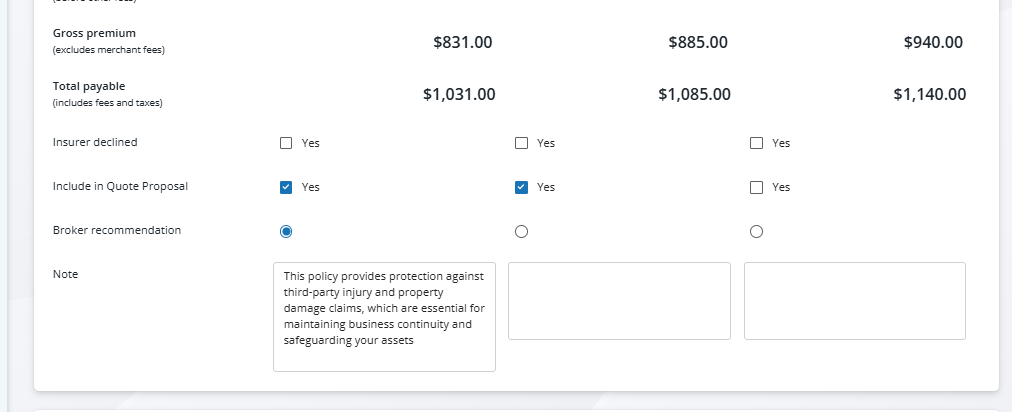
1. Choose the Quotes you wish to include
Ensure all quotes are entered and updated.
Select which quotes to include in the proposal.
Mark any broker recommendations and add notes as needed.
2. Save your Application
Save you application to ensure all data entered will show on the document generated
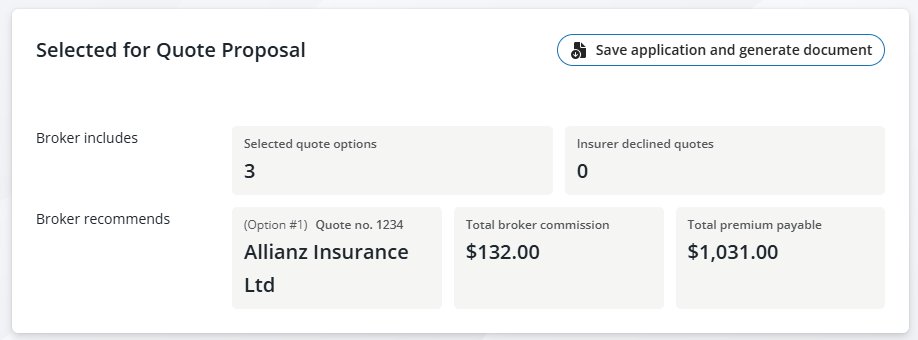
3. Generate Document
Choose a Proposal Template - the templates will have the class of risk in the title
Navigate to the Proposal Document section of the application.
Select from the available preconfigured templates that suit your client or business type.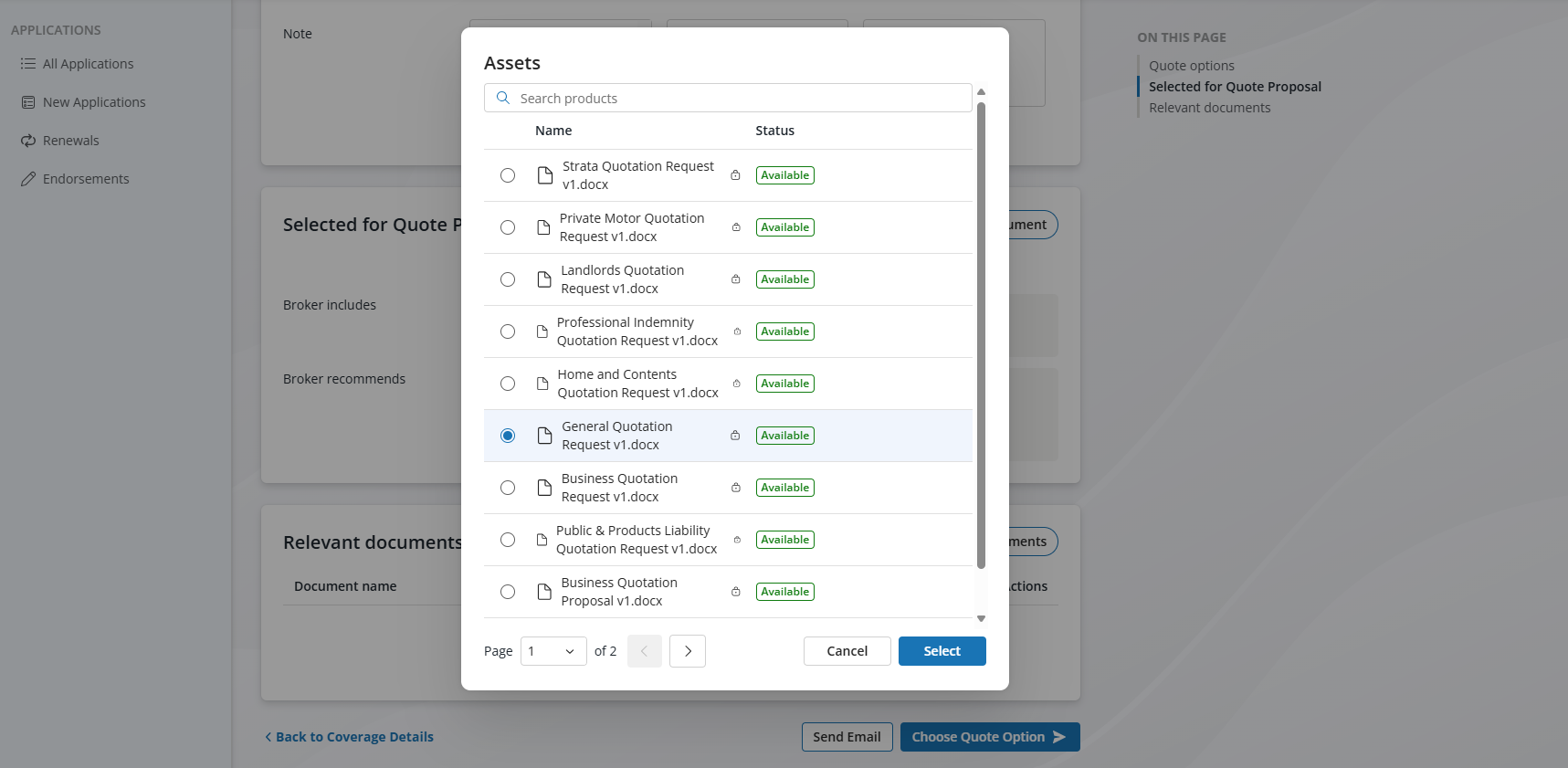
4. Click Select, this will Generate the Document
The system will automatically pull in:
Client and risk details
Selected quotes
Broker recommendations and notes
Once created, the document will show in the Relevant documents section 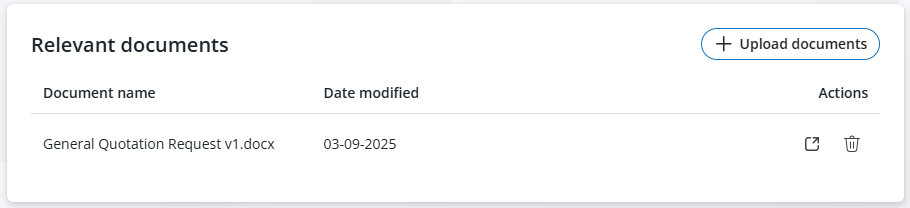
5. Open & Download
Use the Actions menu next to the document.
Click Open Document – this will download the file in Microsoft Word (.docx) format.
6. Save as PDF
- Open the Word document on your computer.
- Go to File > Save As.
- Choose PDF as the file format.
7. Rename the File
- Rename the PDF file to match your internal naming conventions
(e.g., ClientName_Proposal_PublicLiability.pdf). - Save the document to your preferred location.
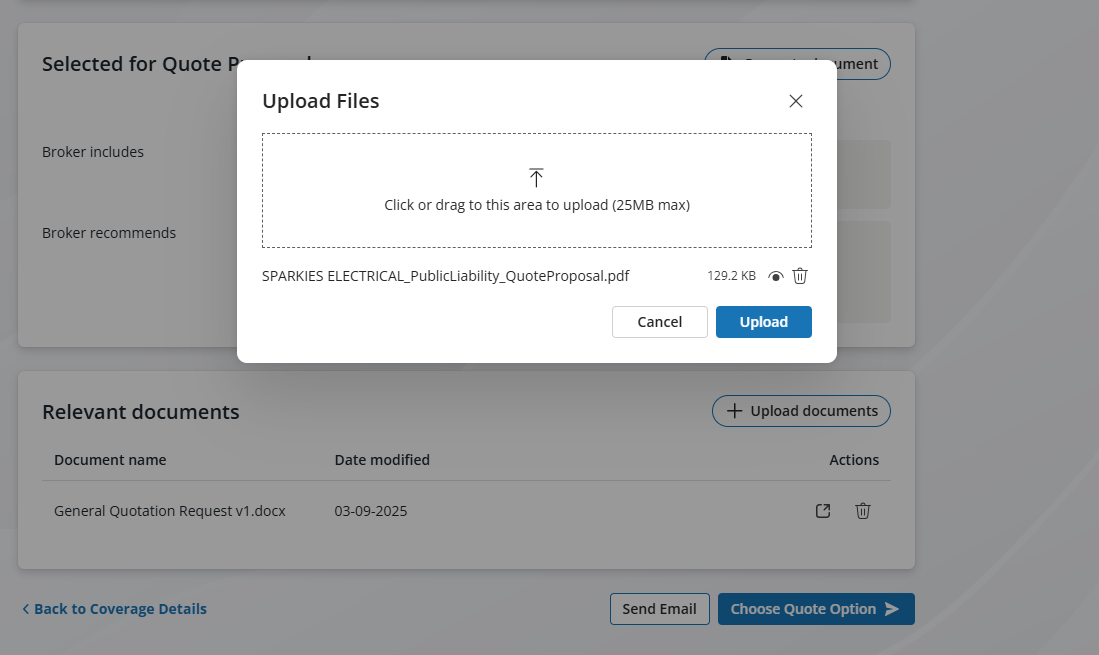
8. Upload the PDF File to the Relevant documents
After generating and saving your proposal document as a PDF, it's recommended to:
- Upload the renamed PDF version
- Delete the original Word (.docx) file from the Relevant Documents section.
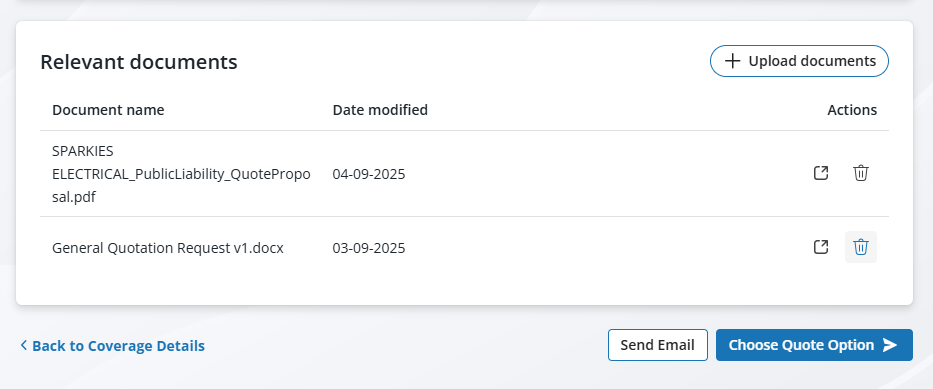
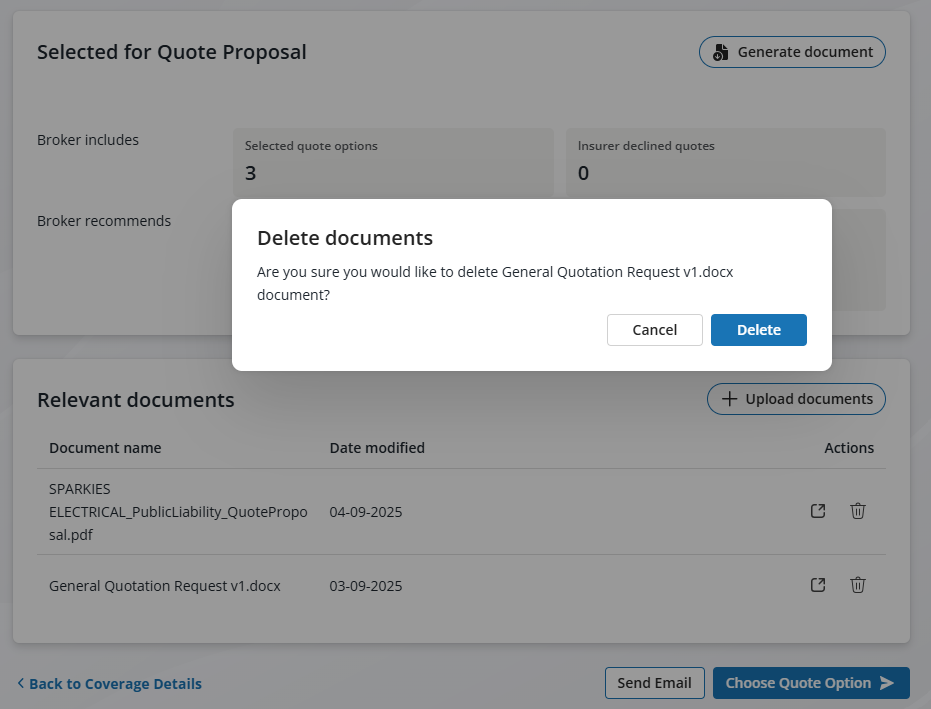
Deleting this document ensures only the final, client ready version is stored and sent. This also keeps your document records clean and professional while reducing the risk of email editable documents to your clients.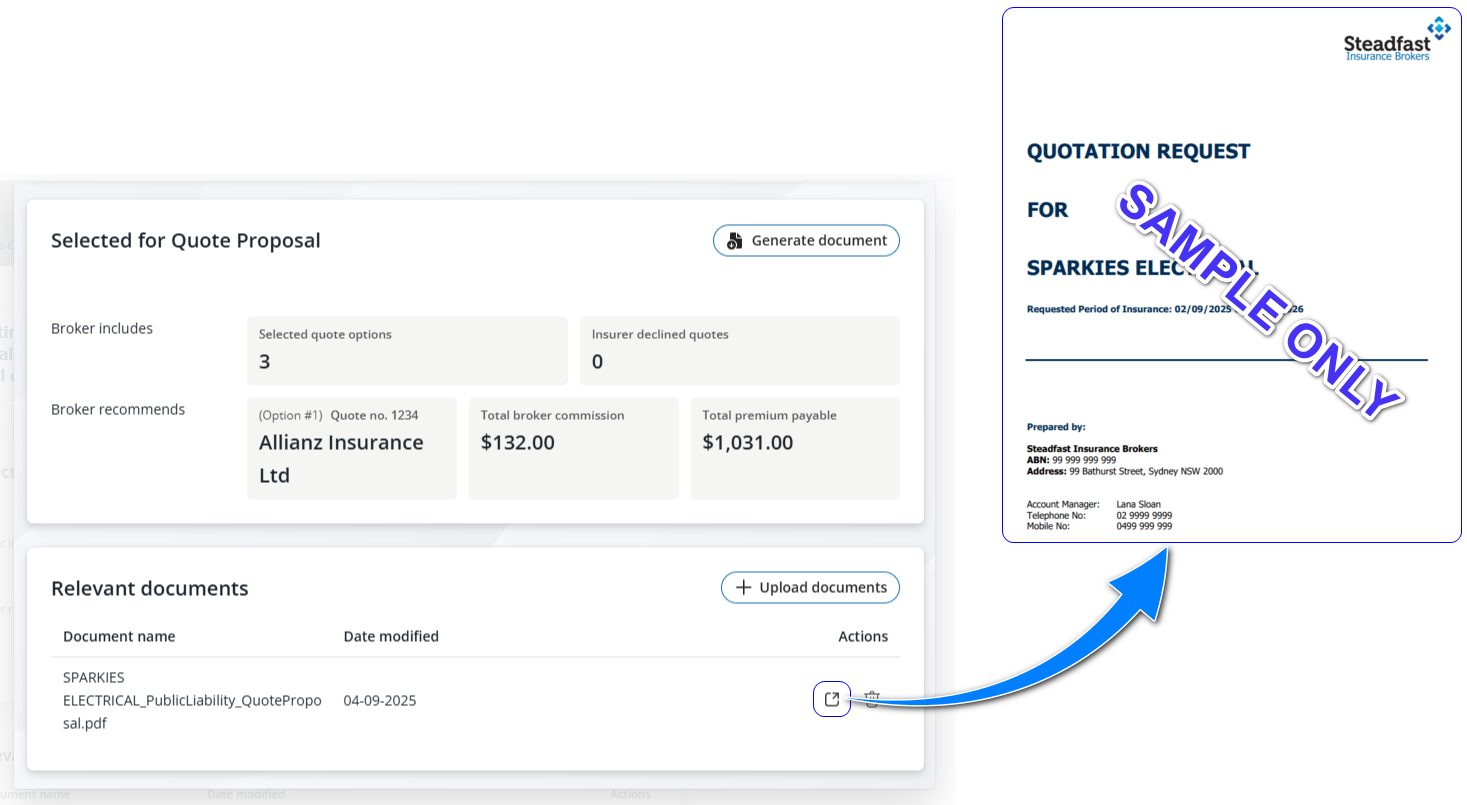
Now that you've generated your quotes and proposals, it's time to take the final step in the quoting process, Emailing your Clients
Something got you stumped?
Our team is here to help! We know change can be tricky, but we've got your back.

Contact our support team here and well get back to you shortly
Was this article helpful?
That’s Great!
Thank you for your feedback
Sorry! We couldn't be helpful
Thank you for your feedback
Feedback sent
We appreciate your effort and will try to fix the article