Converting an Application to a Policy
This is where the automation power of Steadfast Apps really comes into play. Once a client confirms they’d like to proceed with cover, converting their application into a policy unlocks a range of automated features and client interactions streamlining your workflow and enhancing service delivery.
This article walks you through how to take a completed application and convert it into a policy, opening the door to smarter, more efficient client management.
QUICK TIP: These steps should only be completed after the policy is bound in Insight, as you'll need to enter key details like the policy number to successfully convert the application into a policy.
Creating a Policy in Steadfast Apps
Once a client provides bind instructions and confirms they’d like to proceed with cover, provided the policy is bound in INSIGHT, you can convert the completed application into a policy.
1. Locate the Completed Application
The client has responded to their quote email and is ready to proceed. You can find the application by:
- Using the search bar to locate the client
- Navigating to the Applications tab in the left-hand menu
2. Launch the Application
Use the Quick Tools to open the application record.
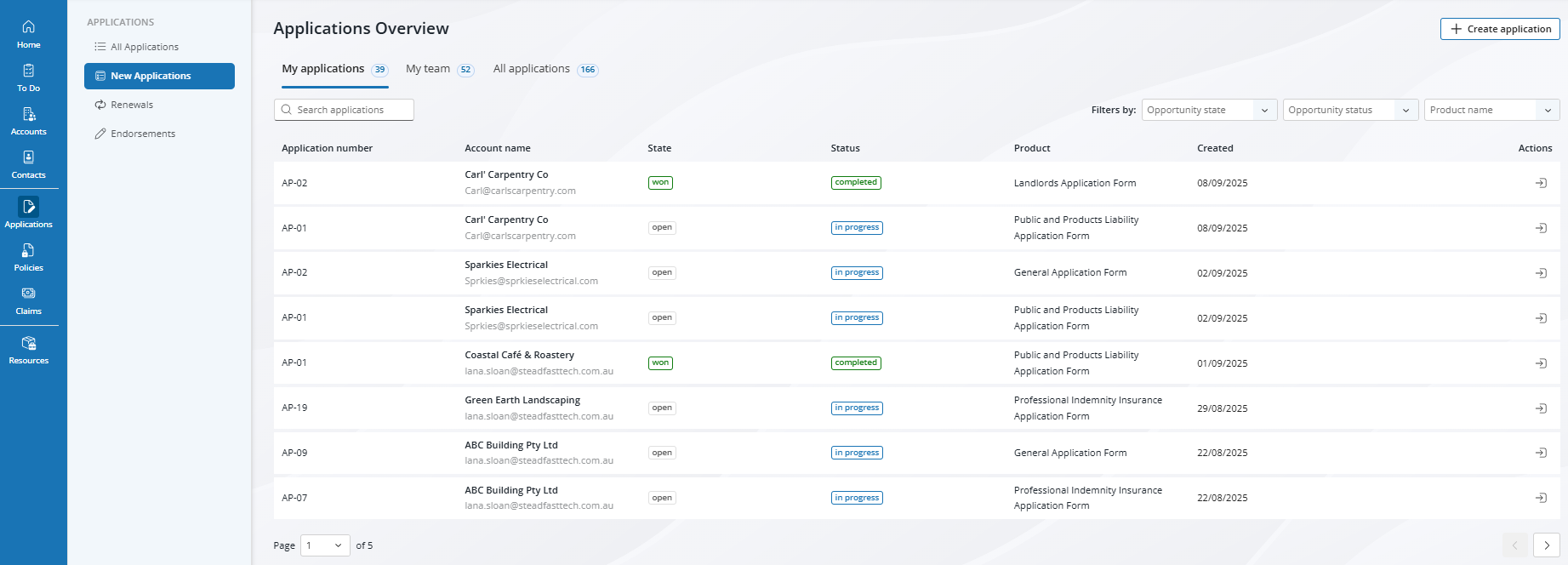
3. Review the Application
Read through the completed details to ensure everything is accurate and ready to proceed.
IMPORTANT
Any amendments made in INSIGHT should be made now, before the policy is put in place within Apps - this ensures the Risk data remains correct.
4. Navigate to the Quote Details Page
Scroll or click through to the Quote Details section.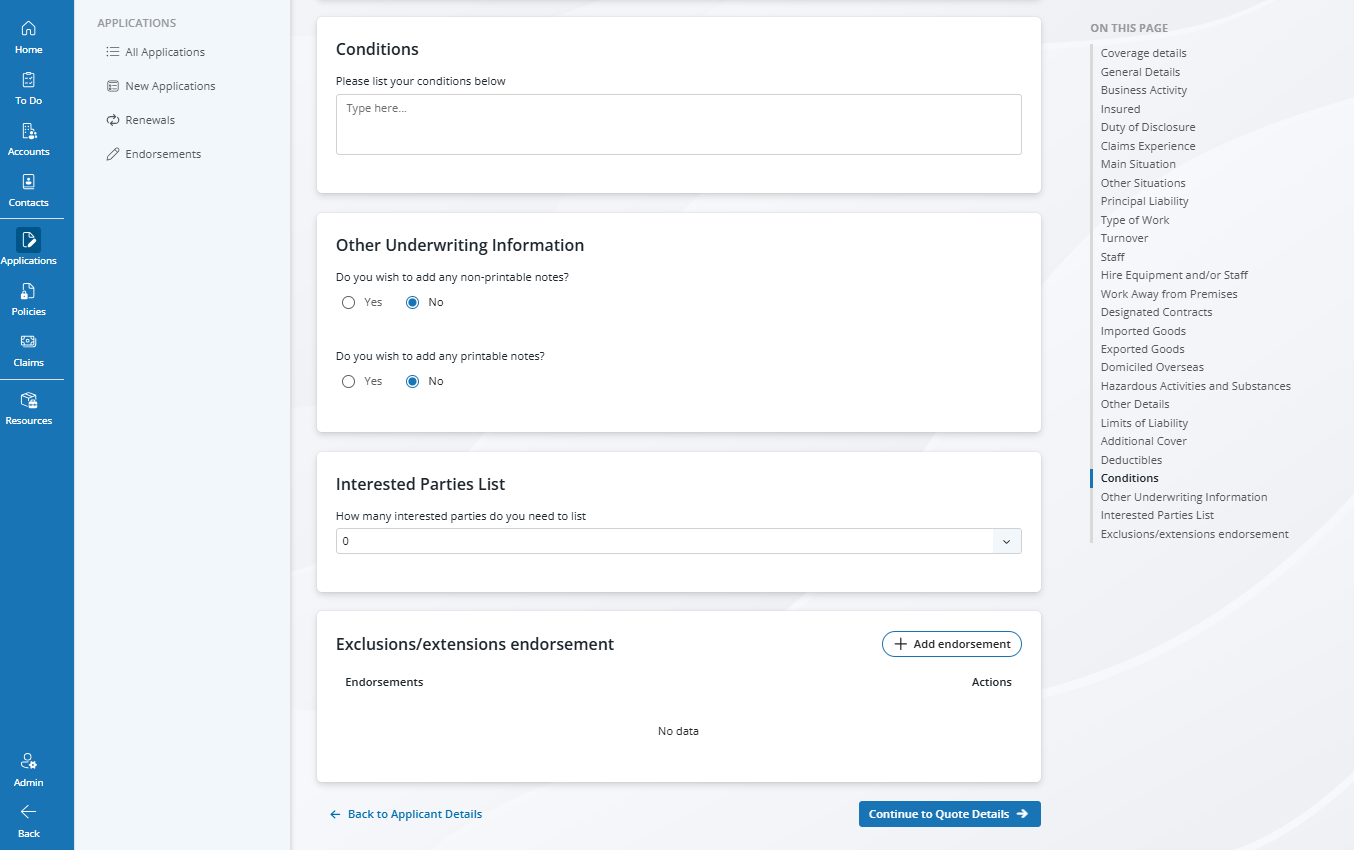
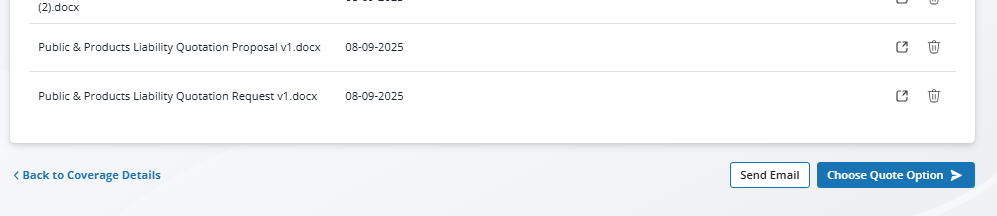
5. Click “Choose Quote Option”
This action begins the process of converting the application into a policy. Once selected, the system will guide you through the necessary steps to finalise the policy setup.
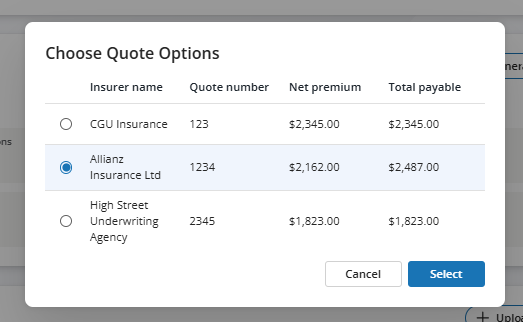
6. Click the Insurer Quote you have bound in INSIGHT
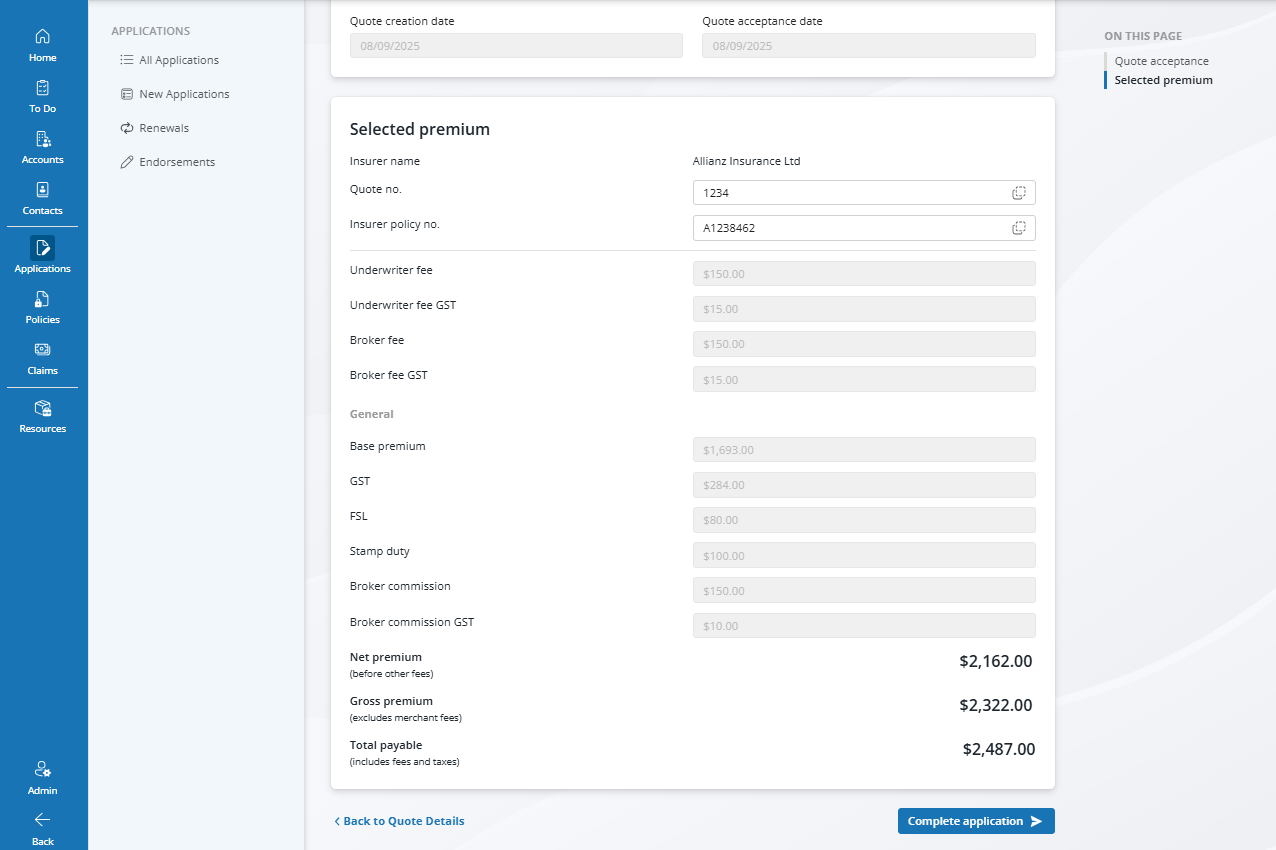
7. Observe the Changes
The application premium will now be greyed out
Only the quote and insurer policy number fields remain editable
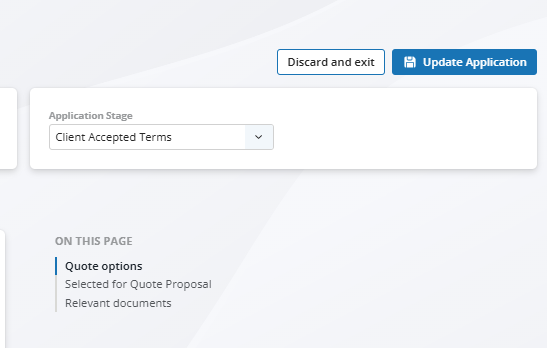
8. Update the Applicaiton Stage
Note: Once completed, the application status cannot be amended.
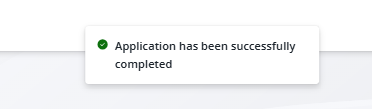
9. Click “Complete”
This final step creates the policy-level record.
If renewal automations are enabled, this will also help trigger next year’s renewal process.

Viewing a Policy in Steadfast Apps
Once you've completed the application and created the policy, you can easily access and review all related details.
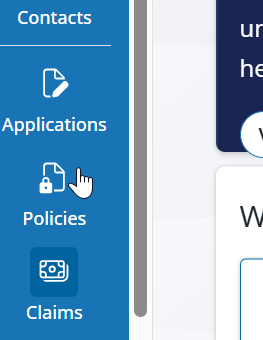
1. Navigate to the Policy Tab
Use the Policies tab in the left-hand menu or the search bar to locate the newly created policy.
2. Open the Policy Using Quick Tools
Click into the policy record using the Quick Tools option.
3. Review the Policy Overview
The policy screen provides a comprehensive view, including:
- A copy of the original application
- The New Business transaction record
- The policy premium
- Access to manual renewal initiation
- Options to endorse the policy
These features are your next steps in managing the policy lifecycle and ensuring smooth client interactions.
Something got you stumped?
Our team is here to help! We know change can be tricky, but we've got your back.

Contact our support team here and well get back to you shortly
Was this article helpful?
That’s Great!
Thank you for your feedback
Sorry! We couldn't be helpful
Thank you for your feedback
Feedback sent
We appreciate your effort and will try to fix the article