Click to go to:
How to Initiate an Endorsement
How to Initiate an Endorsement
 | Quick Links | On the Home page, hover over the Transaction icon and select Endorsement. | 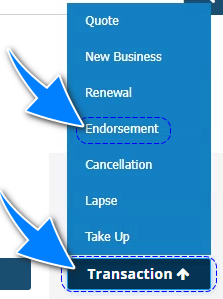 |
 | Transaction | Locate the transaction & from its Actions, choose Endorse. | 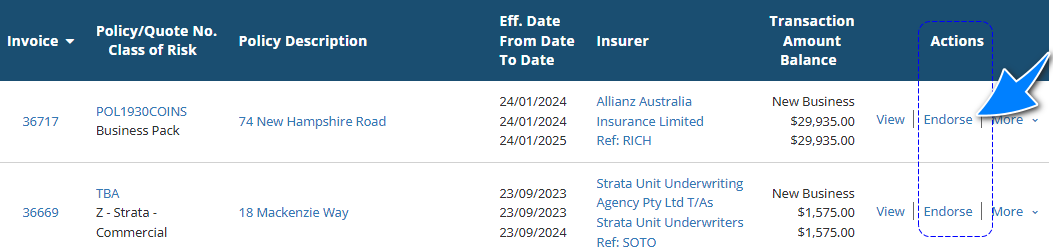 |
 | Policy Transaction level | Select Menu, then Endorse. | 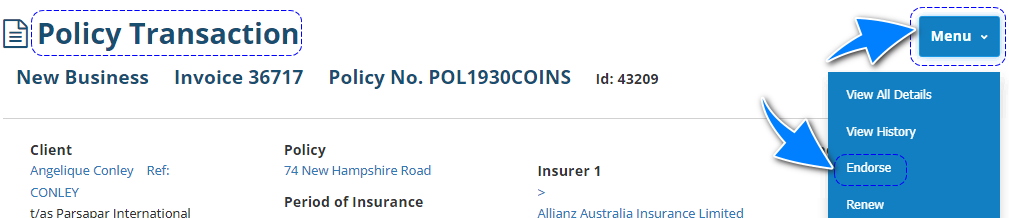 |
 | Transaction wizard | When applicable, the wizard includes the Endorse Policy option in the What's Next button of the Summary page | 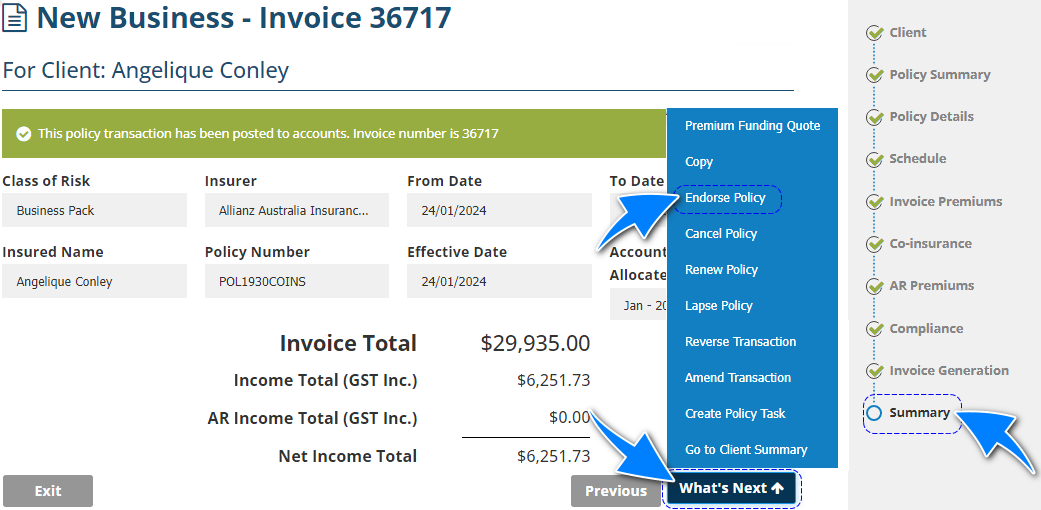 |
NOTE: When initiating via option 1, you will be prompted to enter an existing client name. From there, a list of the client's current transactions will be displayed. Using the list, choose the transaction you wish to endorse.
Endorsement Wizard
The following pages of the Endorsement Wizard have their own articles discussing each page in detail. Select the respective links to learn about each page: | 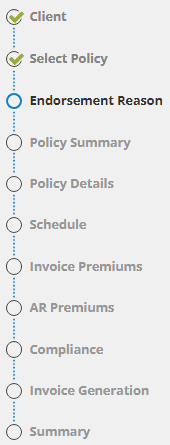 |
Features specific to an Endorsement are the following:
- Endorsement Reason page
- Invoice Premiums page - Once Off Premium Charge and Show Annual Premium
Endorsement Reason
This page is used as an internal reference to note the reason for the endorsement.
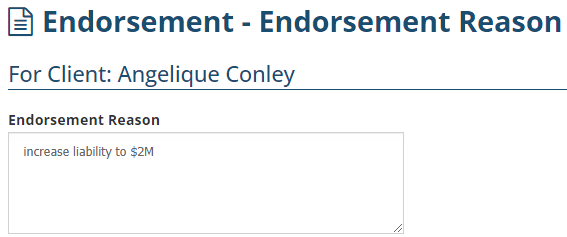
Once the Endorsement is complete, you'll see the Endorsement Reason noted on the following:
| Client level | 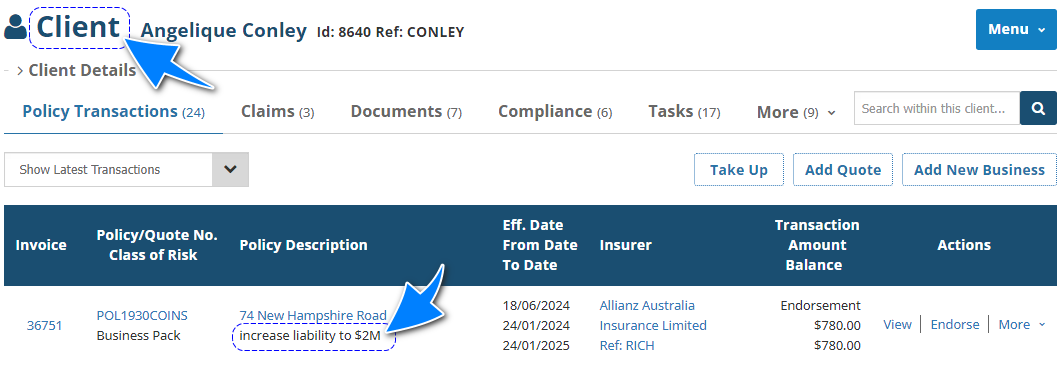 |
| Policy level |  |
| Policy Transaction level | 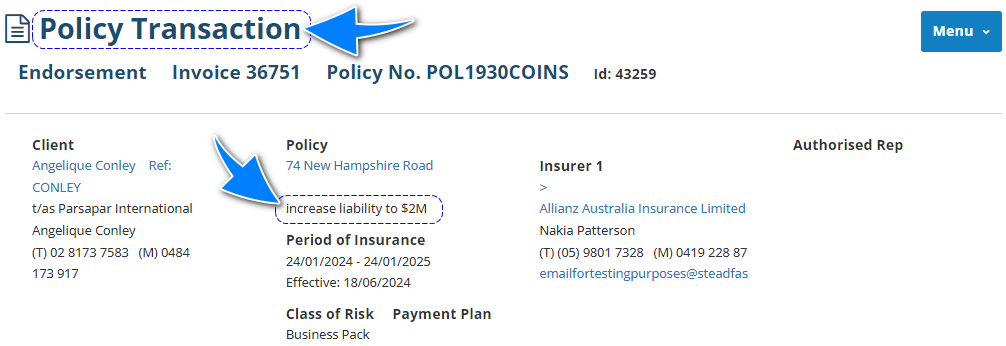 |
Invoice Premiums
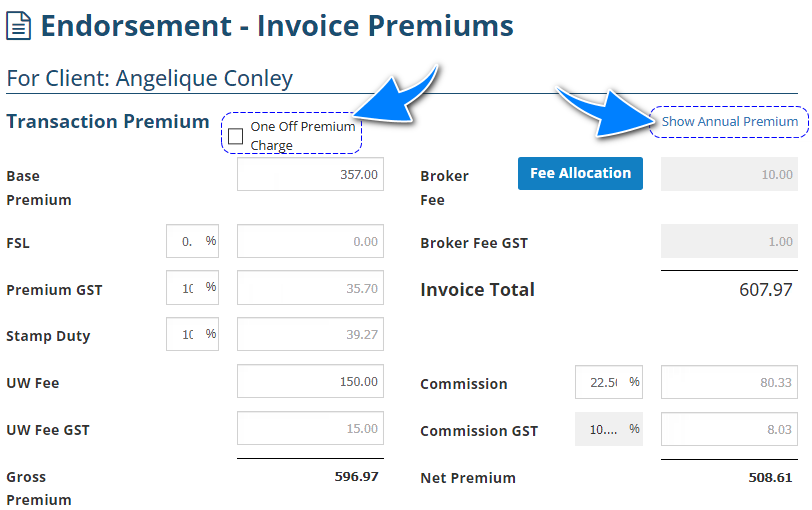
This page will have 2 additional features:
 | One Off Premium Charge - choosing this feature specifies that this transaction's premiums will only apply to this period and will NOT be included in the estimated future annual premium calculation. Sample scenarios are:
|
 | Show Annual Premium - This ONLY displays for Manual policies and enables the Future Annual Premium (FAP) feature. Key features include:
|
Was this article helpful?
That’s Great!
Thank you for your feedback
Sorry! We couldn't be helpful
Thank you for your feedback
Feedback sent
We appreciate your effort and will try to fix the article